![HE logo.png]](https://help.hackerearth.com/hs-fs/hubfs/HE%20logo.png?height=40&name=HE%20logo.png)
Templates define the questions, skills, and proctoring for an OnScreen interview. After you create a template, you can invite candidates to an interview that is based on it.
You can create a template in two ways:
- AI builder: Describe the role or upload a job description, and the AI builder proposes the skills, interview phases, and proctoring settings for you.
- Manual creation: Enter the job title, job requirements, and duration yourself, and select the skills you want covered.
You can also clone one of the sample templates that are curated by HackerEarth and adjust it to fit your role.
Opening the OnScreen templates page
- Log in to your HackerEarth Recruit account by using your admin credentials.
- In the left panel, click OnScreen.
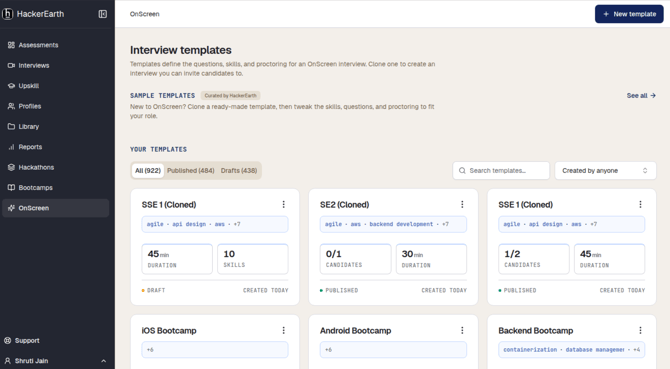
The Interview templates page is displayed. Your templates are listed under Your templates, where you can do the following:
- Filter by All, Published, or Drafts
- Search for a template by name
- Filter by who created the template, by using the Created by anyone list
Each template card shows the skills that are covered, the duration, the number of skills or candidates, and whether the template is a Draft or is Published.
To start from a ready-made template instead, go to the Sample templates section, click See all, and clone the template that fits your role.
Creating a template by using the AI builder
To create a template with the AI builder, follow these steps:
- On the Interview templates page, click New template.
- Describe the role in the text box — for example, the job title, the interview duration, and the areas you want covered. You can also click one of the suggested roles, such as Senior Software Engineer, to start from there.
To use a job description instead, click Add JD and upload the file.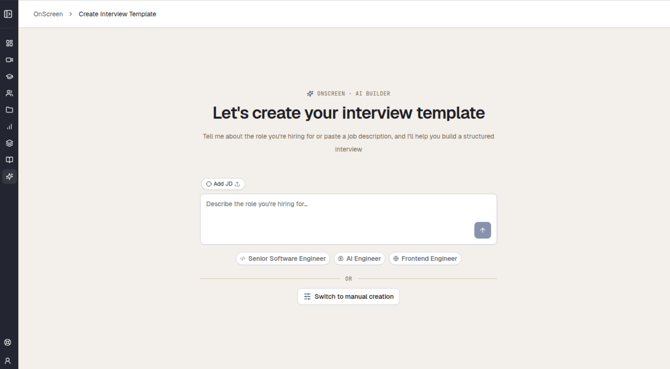
- Click the send icon.
- Review what the AI builder has parsed from your input, such as the role, the suggested skills, the experience level, and the work arrangement. Reply in the chat to refine the template — for example, to name the specific skills you want covered.
- Review the draft template in the right pane. It contains the following:
- Template name and Duration
- Proctoring settings, which show which proctoring features are turned on or off for the interview
- Interview phases, such as Introduction, Background & Resume, and Technical discussion, with the topics under each phase
- Click Create template.
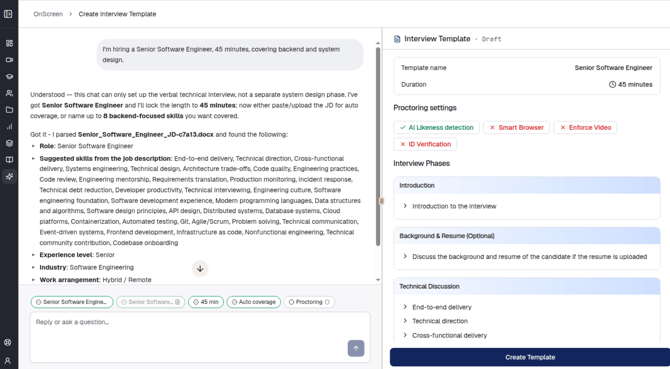
Note: The chips above the chat box show what has been set so far, such as the role, the duration, the skill coverage, and the proctoring settings. Use them to check what the AI builder has captured before you create the template.
Creating a template manually
To create a template without the AI builder, follow these steps:
- On the Interview templates page, click New template.
- Click Switch to manual creation. The Create template pane opens.
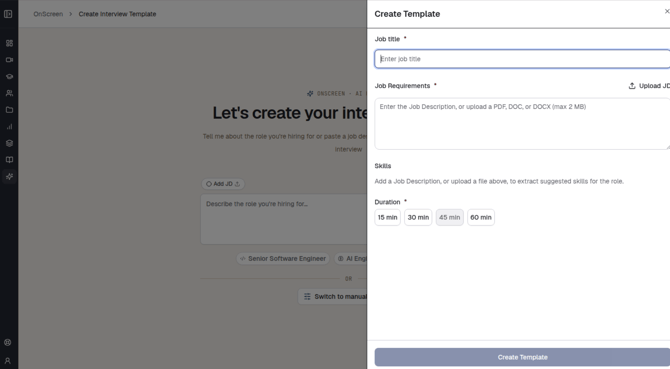
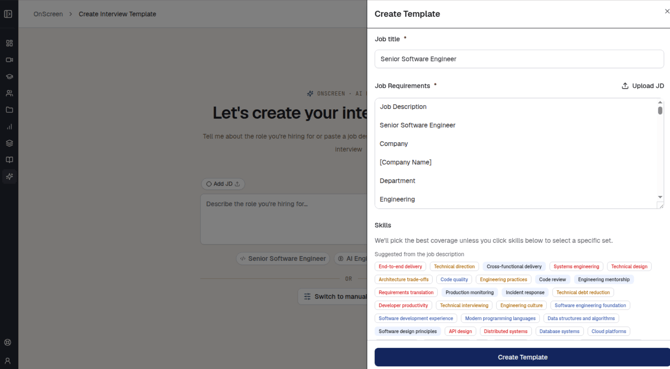
- In the Job title field, enter the title of the role. This field is mandatory.
- In the Job requirements field, enter the job description. Alternatively, click Upload JD to upload a PDF, DOC, or DOCX file of up to 2 MB. This field is mandatory.
- Under Skills, select the skills that you want the interview to cover. The skills are suggested from the job description that you entered or uploaded, so this list appears only after you add one. If you do not select any skills, the best coverage for the role is picked for you.
- Under Duration, select the length of the interview: 15 min, 30 min, 45 min, or 60 min. This field is mandatory.
- Click Create template.
Reviewing the template and inviting candidates
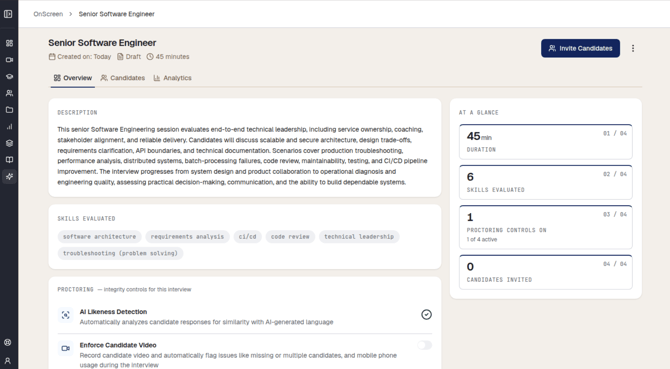
After the template is created, it opens on the Overview tab. The header shows the template name, the date it was created, its status (Draft or Published), and the interview duration.
The Overview tab contains the following:
- Description: A summary of what the interview session evaluates and how it progresses.
- Skills evaluated: The skills that the interview covers.
- Proctoring: The integrity controls for this interview. Use the toggle beside each control to turn it on or off — for example, AI Likeness Detection, which analyzes candidate responses for similarity with AI-generated language, and Enforce Candidate Video, which records candidate video and flags issues such as a missing candidate, multiple candidates, or mobile phone usage during the interview.
- At a glance: A summary of the duration, the number of skills evaluated, how many proctoring controls are active, and the number of candidates invited so far.
Two more tabs are available for the template:
- Candidates: The candidates who have been invited to interviews that are based on this template.
- Analytics: Interview analytics for this template.
To invite candidates, click Invite Candidates in the top-right corner. For more options, click the three dots beside it.