---
title: Editing Invite email templates - FaceCode
description: Edit invite email template for FaceCode
---
[Skip to content](https://help.hackerearth.com/editing-invite-email-templates-facecode#main-content)

Open main navigation
Close main navigation
Hello. How can we help you?
- There are no suggestions because the search field is empty.
1. [Help Center](https://help.hackerearth.com/?hsLang=en)
2. [FaceCode](https://help.hackerearth.com/facecode?hsLang=en)
3. [Scheduling interviews on FaceCode](https://help.hackerearth.com/facecode?hsLang=en#scheduling-interviews-on-facecode)
# Editing Invite email templates - FaceCode
By default, HackerEarth Recruit provides an invite email template that is used to send interview invites to candidates. You can edit this template at your preference.
The template is shared across FaceCode interviews, so any changes that you save apply to the invites that are sent for subsequent interviews.
#### Contents of the invite email
The body of the invite email comprises the following information:
1. **Company name**: The name of your company
2. **Date**: The date of the interview
3. **Interview link**: Link that the candidate uses to join the interview
4. **Invitation sent to**: The email address to which the invite was sent
5. **Login details**: Login credentials for candidates who are using the platform for the first time
6. **Recruiter email**: The email address that the candidate can contact for any queries
#### Strings in the template
The template contains the following strings, which are replaced by text when the email is sent:
| String | Replaced by |
| --- | --- |
| `{@FullName@}` | Candidate's full name |
| `{@CandidateEmail@}` | Candidate's email ID |
| `{@Date@}` | Date of the interview |
| `{@InterviewLink@}` | Link to the interview |
| `{@RecruiterEmail@}` | Email ID of the recruiter |
| `{@ImportantNote@}` | Important note for candidates |
| `{@UserLoginDetails@}` | Login details for a first-time user |
**Important**: It is recommended that you do not remove these strings while composing your invite email.
**Note**: The company name in the email comes from the company information in your settings and cannot be edited in the template. To change it, click **Review here** in the note beside the template.
#### Editing the invite email template
To edit the invite email template, follow these steps:
1. Log in to your HackerEarth Recruit account by using your admin credentials.
2. In the left panel, click **Interviews**.
3. In the top-right corner, click the three dots and then click **FaceCode settings**.
4. In the **FaceCode settings** pane, click **Email templates**.
5. In the **Select template** list, select **Invite Email**.
6. Edit the following as required:
- **Subject**: The subject line of the email
- **Email template**: The body of the email, which you can format by using the toolbar
7. Click **Save changes**.
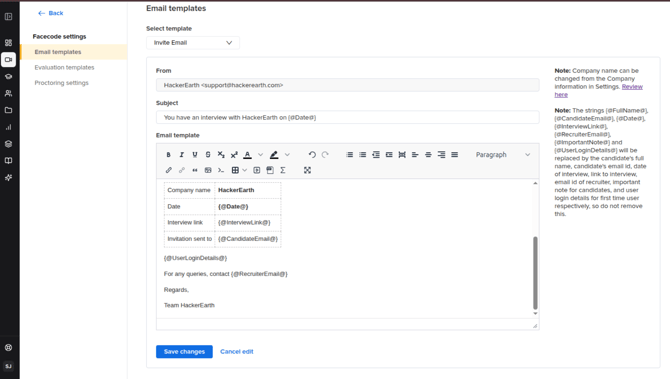
To discard your changes without saving them, click **Cancel edit**.
You can now invite candidates to interviews by using the edited email template.
- [Assessments: Recruiters](https://help.hackerearth.com/assessments-recruiters?hsLang=en#main-content)
- [Getting started](https://help.hackerearth.com/assessments-recruiters?hsLang=en#getting-started)
- [Account settings](https://help.hackerearth.com/assessments-recruiters?hsLang=en#account-settings)
- [Admin management](https://help.hackerearth.com/assessments-recruiters?hsLang=en#admin-management)
- [Creating tests automatically](https://help.hackerearth.com/assessments-recruiters?hsLang=en#creating-tests-automatically)
- [Creating tests manually](https://help.hackerearth.com/assessments-recruiters?hsLang=en#creating-tests-manually)
- [Test settings](https://help.hackerearth.com/assessments-recruiters?hsLang=en#test-settings)
- [Sections and question pooling](https://help.hackerearth.com/assessments-recruiters?hsLang=en#sections-and-question-pooling)
- [Libraries](https://help.hackerearth.com/assessments-recruiters?hsLang=en#libraries)
- [Multiple Choice Questions (MCQs)](https://help.hackerearth.com/assessments-recruiters?hsLang=en#multiple-choice-questions-mcqs)
- [Programming](https://help.hackerearth.com/assessments-recruiters?hsLang=en#programming)
- [Project](https://help.hackerearth.com/assessments-recruiters?hsLang=en#project)
- [SQL](https://help.hackerearth.com/assessments-recruiters?hsLang=en#sql)
- [Data science](https://help.hackerearth.com/assessments-recruiters?hsLang=en#data-science)
- [Machine Learning (ML)](https://help.hackerearth.com/assessments-recruiters?hsLang=en#machine-learning-ml)
- [DevOps](https://help.hackerearth.com/assessments-recruiters?hsLang=en#devops)
- [Python project questions](https://help.hackerearth.com/assessments-recruiters?hsLang=en#python-project-questions)
- [Automation Testing](https://help.hackerearth.com/assessments-recruiters?hsLang=en#automation-testing)
- [Java Project](https://help.hackerearth.com/assessments-recruiters?hsLang=en#java-project)
- [C# project questions](https://help.hackerearth.com/assessments-recruiters?hsLang=en#c-project-questions)
- [Subjective](https://help.hackerearth.com/assessments-recruiters?hsLang=en#subjective)
- [Approximate](https://help.hackerearth.com/assessments-recruiters?hsLang=en#approximate)
- [Diagram](https://help.hackerearth.com/assessments-recruiters?hsLang=en#diagram)
- [File upload](https://help.hackerearth.com/assessments-recruiters?hsLang=en#file-upload)
- [Invites](https://help.hackerearth.com/assessments-recruiters?hsLang=en#invites)
- [Reports](https://help.hackerearth.com/assessments-recruiters?hsLang=en#reports)
- [Billing](https://help.hackerearth.com/assessments-recruiters?hsLang=en#billing)
- [HackerEarth Reports: Admins, Tests, and Teams](https://help.hackerearth.com/assessments-recruiters?hsLang=en#hackerearth-reports-admins-tests-and-teams)
- [Technical Content Updates](https://help.hackerearth.com/assessments-recruiters?hsLang=en#technical-content-updates)
- [FaceCode](https://help.hackerearth.com/facecode?hsLang=en#main-content)
- [FaceCode and its features](https://help.hackerearth.com/facecode?hsLang=en#facecode-and-its-features)
- [Scheduling interviews on FaceCode](https://help.hackerearth.com/facecode?hsLang=en#scheduling-interviews-on-facecode)
- [Assessments: ATS integrations](https://help.hackerearth.com/assessments-ats-integrations?hsLang=en#main-content)
- [Integration](https://help.hackerearth.com/assessments-ats-integrations?hsLang=en#integration)
- [iCIMS](https://help.hackerearth.com/assessments-ats-integrations?hsLang=en#icims)
- [Zoho Recruit](https://help.hackerearth.com/assessments-ats-integrations?hsLang=en#zoho-recruit)
- [SmartRecruiters](https://help.hackerearth.com/assessments-ats-integrations?hsLang=en#smartrecruiters)
- [EightFold](https://help.hackerearth.com/assessments-ats-integrations?hsLang=en#eightfold)
- [SuccessFactors](https://help.hackerearth.com/assessments-ats-integrations?hsLang=en#successfactors)
- [Greenhouse](https://help.hackerearth.com/assessments-ats-integrations?hsLang=en#greenhouse)
- [Lever](https://help.hackerearth.com/assessments-ats-integrations?hsLang=en#lever)
- [Linkedin Talent Hub](https://help.hackerearth.com/assessments-ats-integrations?hsLang=en#linkedin-talent-hub)
- [JazzHR](https://help.hackerearth.com/assessments-ats-integrations?hsLang=en#jazzhr)
- [Workable](https://help.hackerearth.com/assessments-ats-integrations?hsLang=en#workable)
- [Recruiterbox - Trakstar Hire](https://help.hackerearth.com/assessments-ats-integrations?hsLang=en#recruiterbox-trakstar-hire)
- [Jobvite](https://help.hackerearth.com/assessments-ats-integrations?hsLang=en#jobvite)
- [Ashby](https://help.hackerearth.com/assessments-ats-integrations?hsLang=en#ashby)
- [Assessments: Product updates](https://help.hackerearth.com/assessments-product-updates?hsLang=en#main-content)
- [Release notes: HackerEarth Assessment](https://help.hackerearth.com/assessments-product-updates?hsLang=en#release-notes-hackerearth-assessment)
- [Root Cause Analysis (RCA)](https://help.hackerearth.com/assessments-product-updates?hsLang=en#root-cause-analysis-rca)
- [Content updates](https://help.hackerearth.com/assessments-product-updates?hsLang=en#content-updates)
- [Assessments: Best practices](https://help.hackerearth.com/assessments-best-practices?hsLang=en#main-content)
- [Recruit](https://help.hackerearth.com/assessments-best-practices?hsLang=en#recruit)
- [SSO](https://help.hackerearth.com/sso?hsLang=en#main-content)
- [SSO](https://help.hackerearth.com/sso?hsLang=en#sso)
- [Upskilling](https://help.hackerearth.com/upskilling?hsLang=en#main-content)
- [Introduction: Upskilling](https://help.hackerearth.com/upskilling?hsLang=en#introduction-upskilling)
- [Assessments: Candidates](https://help.hackerearth.com/assessments-candidates?hsLang=en#main-content)
- [Getting started](https://help.hackerearth.com/assessments-candidates?hsLang=en#getting-started)
- [Test environment](https://help.hackerearth.com/assessments-candidates?hsLang=en#test-environment)
- [Question types](https://help.hackerearth.com/assessments-candidates?hsLang=en#question-types)
- [FaceCode](https://help.hackerearth.com/assessments-candidates?hsLang=en#facecode)
- [Feedback and queries](https://help.hackerearth.com/assessments-candidates?hsLang=en#feedback-and-queries)
- [Problem setting for HackerEarth](https://help.hackerearth.com/problem-setting-for-hackerearth?hsLang=en#main-content)
- [Rate cards](https://help.hackerearth.com/problem-setting-for-hackerearth?hsLang=en#rate-cards)
- [Campus](https://help.hackerearth.com/campus?hsLang=en#main-content)
- [Recruiters](https://help.hackerearth.com/campus?hsLang=en#recruiters)
- [Recruiter FAQs](https://help.hackerearth.com/campus?hsLang=en#recruiter-faqs)
- [Candidate FAQs](https://help.hackerearth.com/campus?hsLang=en#candidate-faqs)
- [Hackathons and Hiring Challenges](https://help.hackerearth.com/hackathons-and-hiring-challenges?hsLang=en#main-content)
- [Hackathons](https://help.hackerearth.com/hackathons-and-hiring-challenges?hsLang=en#hackathons)
- [Hiring challenges](https://help.hackerearth.com/hackathons-and-hiring-challenges?hsLang=en#hiring-challenges)
- [Frequently Asked Questions (FAQs)](https://help.hackerearth.com/frequently-asked-questions-faqs?hsLang=en#main-content)
- [Assessments: Recruiters](https://help.hackerearth.com/frequently-asked-questions-faqs?hsLang=en#assessments-recruiters)
- [GDPR compliance (Candidates)](https://help.hackerearth.com/frequently-asked-questions-faqs?hsLang=en#gdpr-compliance-candidates)
- [GDPR compliance (Recruiters)](https://help.hackerearth.com/frequently-asked-questions-faqs?hsLang=en#gdpr-compliance-recruiters)
- [General](https://help.hackerearth.com/frequently-asked-questions-faqs?hsLang=en#general)
- [Assessments: Candidates](https://help.hackerearth.com/frequently-asked-questions-faqs?hsLang=en#assessments-candidates)
- [HackerEarth Vs ChatGPT](https://help.hackerearth.com/frequently-asked-questions-faqs?hsLang=en#hackerearth-vs-chatgpt)
- [Profiles](https://help.hackerearth.com/profiles?hsLang=en#main-content)
- [Profiles - Recruiter](https://help.hackerearth.com/profiles?hsLang=en#profiles-recruiter)
- [OnScreen](https://help.hackerearth.com/onscreen?hsLang=en#main-content)
- [OnScreen - Interview templates](https://help.hackerearth.com/onscreen?hsLang=en#onscreen-interview-templates)
- [OnScreen - Sending Invites](https://help.hackerearth.com/onscreen?hsLang=en#onscreen-sending-invites)
- [OnScreen - Download reports](https://help.hackerearth.com/onscreen?hsLang=en#onscreen-download-reports)
- [OnScreen - Interview Analytics](https://help.hackerearth.com/onscreen?hsLang=en#onscreen-interview-analytics)
- [OnScreen - Overview](https://help.hackerearth.com/onscreen?hsLang=en#onscreen-overview)
- [OnScreen - Interview Proctoring Settings](https://help.hackerearth.com/onscreen?hsLang=en#onscreen-interview-proctoring-settings)
[](https://www.hackerearth.com/)
##### The skills intelligence platform for the AI era. Evaluate developers, candidates, and AI agents.
© 2026 HackerEarth · All rights reserved