---
title: Sending test invites and reviewing test results
description: greenhouse-v2-integrations
---
[Skip to content](https://help.hackerearth.com/sending-test-invites-and-reviewing-test-results-v2#main-content)

Open main navigation
Close main navigation
Hello. How can we help you?
- There are no suggestions because the search field is empty.
1. [Help Center](https://help.hackerearth.com/?hsLang=en)
2. [Assessments: ATS integrations](https://help.hackerearth.com/assessments-ats-integrations?hsLang=en)
3. [Greenhouse](https://help.hackerearth.com/assessments-ats-integrations?hsLang=en#greenhouse)
# Sending test invites and reviewing test results
To send test invites, follow these steps:
1. Log into your Greenhouse account.
2. Navigate to a candidate's profile.
3. Move the candidate into the **HackerEarth Assessment** stage, or click the relevant action to open the **Send test** dialog.
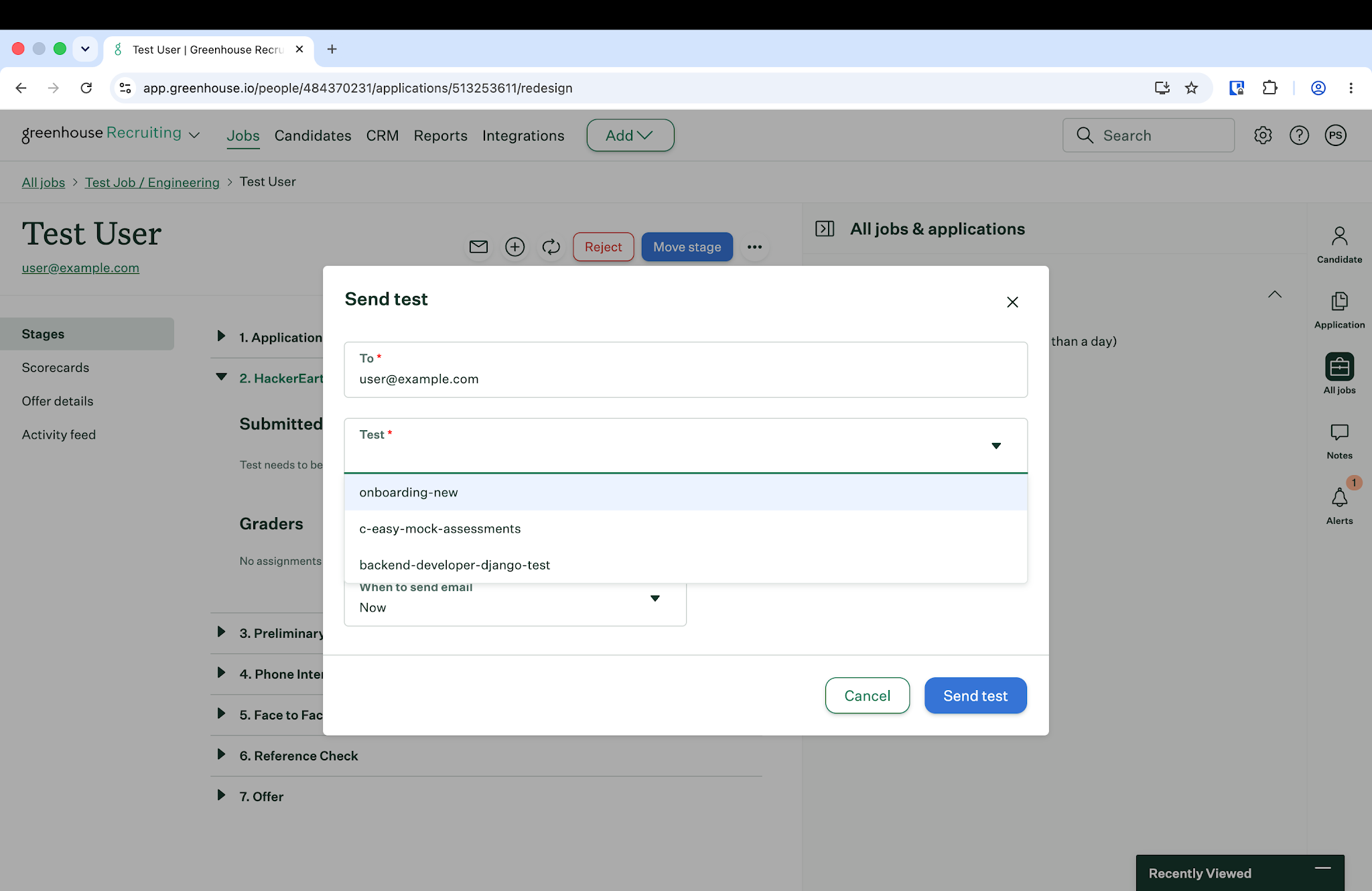
4. Confirm the **To** email address.
5. In the **Test** dropdown, select the assessment you want to send.
6. In **When to send email**, choose **Now** or a scheduled time.
7. Click **Send test**.
You have successfully sent the test invite.
---
### **Tracking test status**
Status is reflected in two places on the candidate's profile:
**Candidate tags** — shown near the candidate's name, and under Additional details:
- HE Test Sent — the invite has gone out
- HE Test Completed — the candidate has submitted the test
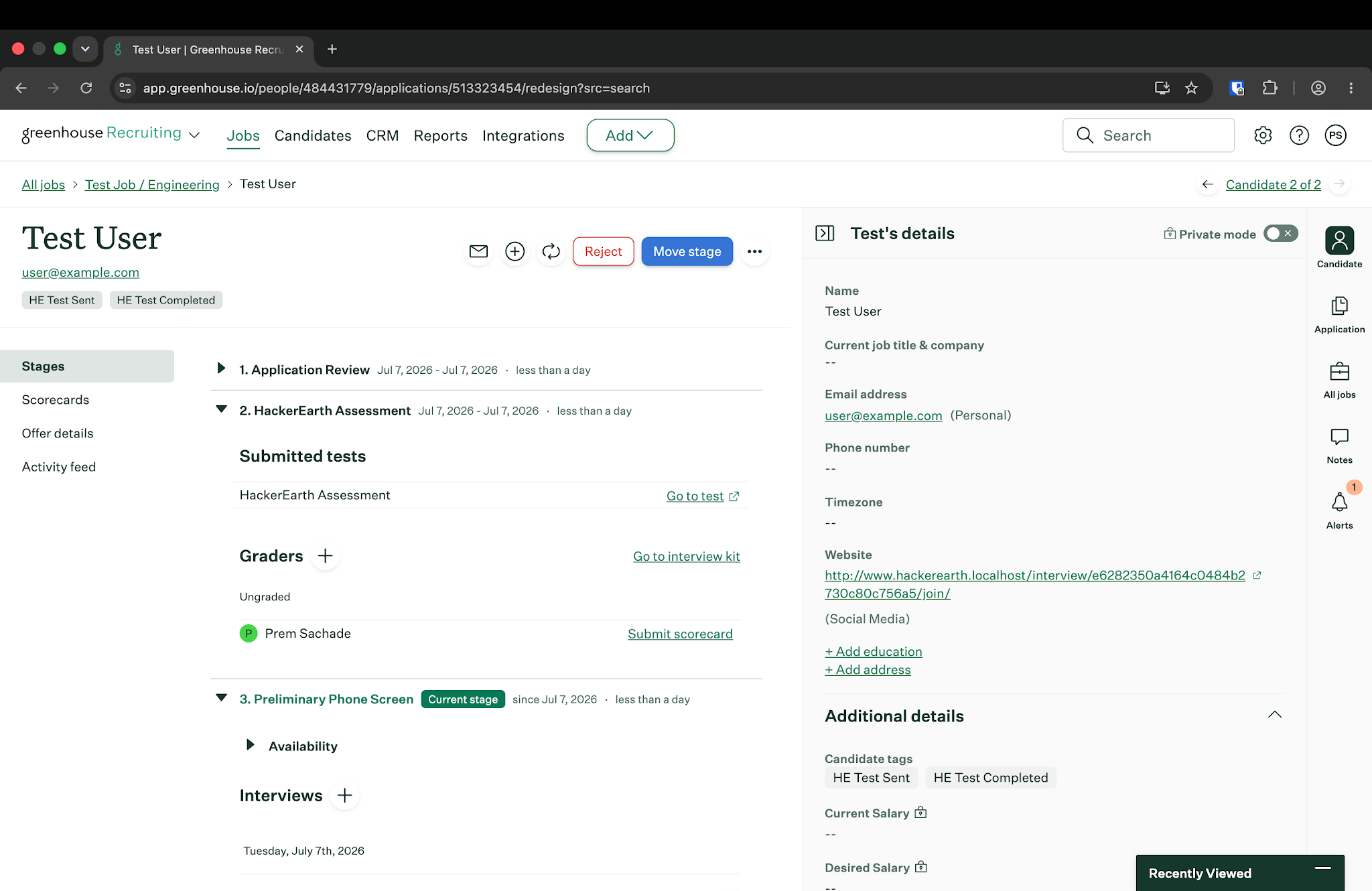
**Submitted tests panel** — inside the HackerEarth Assessment stage on the candidate's profile, once a submission comes in:
- Shows the name of the submitted assessment.
- **Go to test** opens the full submission directly on HackerEarth.
---
### **Assigning and tracking graders**
The **Graders** section, within the same stage, shows who is assigned to review the submission:
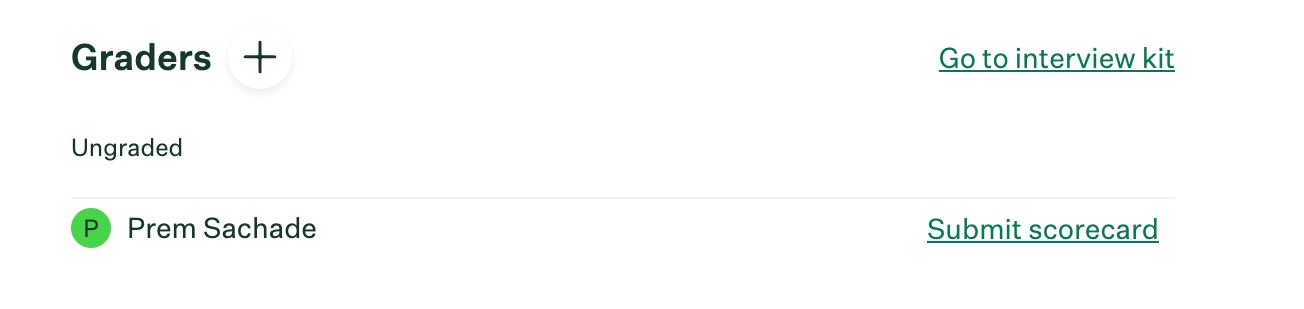
- Click the **+** icon next to Graders to add additional reviewers.
- Each grader sees a **Submit scorecard** link once the test is ready for review.
- Click **Go to interview kit** to review candidate details alongside the scorecard.
---
### **Reviewing test results**
Once the candidate has submitted their test:
1. Open the candidate's profile and go to the **HackerEarth Assessment** stage.
2. Under **Submitted tests**, click **Go to test** to view the full submission and results on HackerEarth.
3. Assigned graders can submit their evaluation via **Submit scorecard**, or through the **Interview Kit**.
- [Assessments: Recruiters](https://help.hackerearth.com/assessments-recruiters?hsLang=en#main-content)
- [Getting started](https://help.hackerearth.com/assessments-recruiters?hsLang=en#getting-started)
- [Account settings](https://help.hackerearth.com/assessments-recruiters?hsLang=en#account-settings)
- [Admin management](https://help.hackerearth.com/assessments-recruiters?hsLang=en#admin-management)
- [Creating tests automatically](https://help.hackerearth.com/assessments-recruiters?hsLang=en#creating-tests-automatically)
- [Creating tests manually](https://help.hackerearth.com/assessments-recruiters?hsLang=en#creating-tests-manually)
- [Test settings](https://help.hackerearth.com/assessments-recruiters?hsLang=en#test-settings)
- [Sections and question pooling](https://help.hackerearth.com/assessments-recruiters?hsLang=en#sections-and-question-pooling)
- [Libraries](https://help.hackerearth.com/assessments-recruiters?hsLang=en#libraries)
- [Multiple Choice Questions (MCQs)](https://help.hackerearth.com/assessments-recruiters?hsLang=en#multiple-choice-questions-mcqs)
- [Programming](https://help.hackerearth.com/assessments-recruiters?hsLang=en#programming)
- [Project](https://help.hackerearth.com/assessments-recruiters?hsLang=en#project)
- [SQL](https://help.hackerearth.com/assessments-recruiters?hsLang=en#sql)
- [Data science](https://help.hackerearth.com/assessments-recruiters?hsLang=en#data-science)
- [Machine Learning (ML)](https://help.hackerearth.com/assessments-recruiters?hsLang=en#machine-learning-ml)
- [DevOps](https://help.hackerearth.com/assessments-recruiters?hsLang=en#devops)
- [Python project questions](https://help.hackerearth.com/assessments-recruiters?hsLang=en#python-project-questions)
- [Automation Testing](https://help.hackerearth.com/assessments-recruiters?hsLang=en#automation-testing)
- [Java Project](https://help.hackerearth.com/assessments-recruiters?hsLang=en#java-project)
- [C# project questions](https://help.hackerearth.com/assessments-recruiters?hsLang=en#c-project-questions)
- [Subjective](https://help.hackerearth.com/assessments-recruiters?hsLang=en#subjective)
- [Approximate](https://help.hackerearth.com/assessments-recruiters?hsLang=en#approximate)
- [Diagram](https://help.hackerearth.com/assessments-recruiters?hsLang=en#diagram)
- [File upload](https://help.hackerearth.com/assessments-recruiters?hsLang=en#file-upload)
- [Invites](https://help.hackerearth.com/assessments-recruiters?hsLang=en#invites)
- [Reports](https://help.hackerearth.com/assessments-recruiters?hsLang=en#reports)
- [Billing](https://help.hackerearth.com/assessments-recruiters?hsLang=en#billing)
- [HackerEarth Reports: Admins, Tests, and Teams](https://help.hackerearth.com/assessments-recruiters?hsLang=en#hackerearth-reports-admins-tests-and-teams)
- [Technical Content Updates](https://help.hackerearth.com/assessments-recruiters?hsLang=en#technical-content-updates)
- [FaceCode](https://help.hackerearth.com/facecode?hsLang=en#main-content)
- [FaceCode and its features](https://help.hackerearth.com/facecode?hsLang=en#facecode-and-its-features)
- [Scheduling interviews on FaceCode](https://help.hackerearth.com/facecode?hsLang=en#scheduling-interviews-on-facecode)
- [Assessments: ATS integrations](https://help.hackerearth.com/assessments-ats-integrations?hsLang=en#main-content)
- [Integration](https://help.hackerearth.com/assessments-ats-integrations?hsLang=en#integration)
- [iCIMS](https://help.hackerearth.com/assessments-ats-integrations?hsLang=en#icims)
- [Zoho Recruit](https://help.hackerearth.com/assessments-ats-integrations?hsLang=en#zoho-recruit)
- [SmartRecruiters](https://help.hackerearth.com/assessments-ats-integrations?hsLang=en#smartrecruiters)
- [EightFold](https://help.hackerearth.com/assessments-ats-integrations?hsLang=en#eightfold)
- [SuccessFactors](https://help.hackerearth.com/assessments-ats-integrations?hsLang=en#successfactors)
- [Greenhouse](https://help.hackerearth.com/assessments-ats-integrations?hsLang=en#greenhouse)
- [Lever](https://help.hackerearth.com/assessments-ats-integrations?hsLang=en#lever)
- [Linkedin Talent Hub](https://help.hackerearth.com/assessments-ats-integrations?hsLang=en#linkedin-talent-hub)
- [JazzHR](https://help.hackerearth.com/assessments-ats-integrations?hsLang=en#jazzhr)
- [Workable](https://help.hackerearth.com/assessments-ats-integrations?hsLang=en#workable)
- [Recruiterbox - Trakstar Hire](https://help.hackerearth.com/assessments-ats-integrations?hsLang=en#recruiterbox-trakstar-hire)
- [Jobvite](https://help.hackerearth.com/assessments-ats-integrations?hsLang=en#jobvite)
- [Ashby](https://help.hackerearth.com/assessments-ats-integrations?hsLang=en#ashby)
- [Assessments: Product updates](https://help.hackerearth.com/assessments-product-updates?hsLang=en#main-content)
- [Release notes: HackerEarth Assessment](https://help.hackerearth.com/assessments-product-updates?hsLang=en#release-notes-hackerearth-assessment)
- [Root Cause Analysis (RCA)](https://help.hackerearth.com/assessments-product-updates?hsLang=en#root-cause-analysis-rca)
- [Content updates](https://help.hackerearth.com/assessments-product-updates?hsLang=en#content-updates)
- [Assessments: Best practices](https://help.hackerearth.com/assessments-best-practices?hsLang=en#main-content)
- [Recruit](https://help.hackerearth.com/assessments-best-practices?hsLang=en#recruit)
- [SSO](https://help.hackerearth.com/sso?hsLang=en#main-content)
- [SSO](https://help.hackerearth.com/sso?hsLang=en#sso)
- [Upskilling](https://help.hackerearth.com/upskilling?hsLang=en#main-content)
- [Introduction: Upskilling](https://help.hackerearth.com/upskilling?hsLang=en#introduction-upskilling)
- [Assessments: Candidates](https://help.hackerearth.com/assessments-candidates?hsLang=en#main-content)
- [Getting started](https://help.hackerearth.com/assessments-candidates?hsLang=en#getting-started)
- [Test environment](https://help.hackerearth.com/assessments-candidates?hsLang=en#test-environment)
- [Question types](https://help.hackerearth.com/assessments-candidates?hsLang=en#question-types)
- [FaceCode](https://help.hackerearth.com/assessments-candidates?hsLang=en#facecode)
- [Feedback and queries](https://help.hackerearth.com/assessments-candidates?hsLang=en#feedback-and-queries)
- [Problem setting for HackerEarth](https://help.hackerearth.com/problem-setting-for-hackerearth?hsLang=en#main-content)
- [Rate cards](https://help.hackerearth.com/problem-setting-for-hackerearth?hsLang=en#rate-cards)
- [Campus](https://help.hackerearth.com/campus?hsLang=en#main-content)
- [Recruiters](https://help.hackerearth.com/campus?hsLang=en#recruiters)
- [Recruiter FAQs](https://help.hackerearth.com/campus?hsLang=en#recruiter-faqs)
- [Candidate FAQs](https://help.hackerearth.com/campus?hsLang=en#candidate-faqs)
- [Hackathons and Hiring Challenges](https://help.hackerearth.com/hackathons-and-hiring-challenges?hsLang=en#main-content)
- [Hackathons](https://help.hackerearth.com/hackathons-and-hiring-challenges?hsLang=en#hackathons)
- [Hiring challenges](https://help.hackerearth.com/hackathons-and-hiring-challenges?hsLang=en#hiring-challenges)
- [Frequently Asked Questions (FAQs)](https://help.hackerearth.com/frequently-asked-questions-faqs?hsLang=en#main-content)
- [Assessments: Recruiters](https://help.hackerearth.com/frequently-asked-questions-faqs?hsLang=en#assessments-recruiters)
- [GDPR compliance (Candidates)](https://help.hackerearth.com/frequently-asked-questions-faqs?hsLang=en#gdpr-compliance-candidates)
- [GDPR compliance (Recruiters)](https://help.hackerearth.com/frequently-asked-questions-faqs?hsLang=en#gdpr-compliance-recruiters)
- [General](https://help.hackerearth.com/frequently-asked-questions-faqs?hsLang=en#general)
- [Assessments: Candidates](https://help.hackerearth.com/frequently-asked-questions-faqs?hsLang=en#assessments-candidates)
- [HackerEarth Vs ChatGPT](https://help.hackerearth.com/frequently-asked-questions-faqs?hsLang=en#hackerearth-vs-chatgpt)
- [Profiles](https://help.hackerearth.com/profiles?hsLang=en#main-content)
- [Profiles - Recruiter](https://help.hackerearth.com/profiles?hsLang=en#profiles-recruiter)
- [OnScreen](https://help.hackerearth.com/onscreen?hsLang=en#main-content)
- [OnScreen - Interview templates](https://help.hackerearth.com/onscreen?hsLang=en#onscreen-interview-templates)
- [OnScreen - Sending Invites](https://help.hackerearth.com/onscreen?hsLang=en#onscreen-sending-invites)
- [OnScreen - Download reports](https://help.hackerearth.com/onscreen?hsLang=en#onscreen-download-reports)
- [OnScreen - Interview Analytics](https://help.hackerearth.com/onscreen?hsLang=en#onscreen-interview-analytics)
- [OnScreen - Overview](https://help.hackerearth.com/onscreen?hsLang=en#onscreen-overview)
- [OnScreen - Interview Proctoring Settings](https://help.hackerearth.com/onscreen?hsLang=en#onscreen-interview-proctoring-settings)
[](https://www.hackerearth.com/)
##### The skills intelligence platform for the AI era. Evaluate developers, candidates, and AI agents.
© 2026 HackerEarth · All rights reserved