![HE logo.png]](https://help.hackerearth.com/hs-fs/hubfs/HE%20logo.png?height=40&name=HE%20logo.png)
In this article, we will explore the following topics:
- Supported operating systems for Smart Browser
- Download and start your session
- Before the test
- During the test
- After the test and reconnecting
- Important notes
- Supported operating systems for Smart Browser
Smart Browser is supported by the following Operating Systems (OS):
|
OS |
Versions |
|
Windows |
10 and above (including Windows 11) |
|
MacOS |
Intel, 11 (Big Sur) and above (Apple Silicon only) |
Download and start your session
- From your invitation email or HackerEarth page, download and install Smart Browser for your operating system.
- Open Smart Browser.
- Return to the browser tab or email where you started, and click Start. This opens your test or interview in Smart Browser.
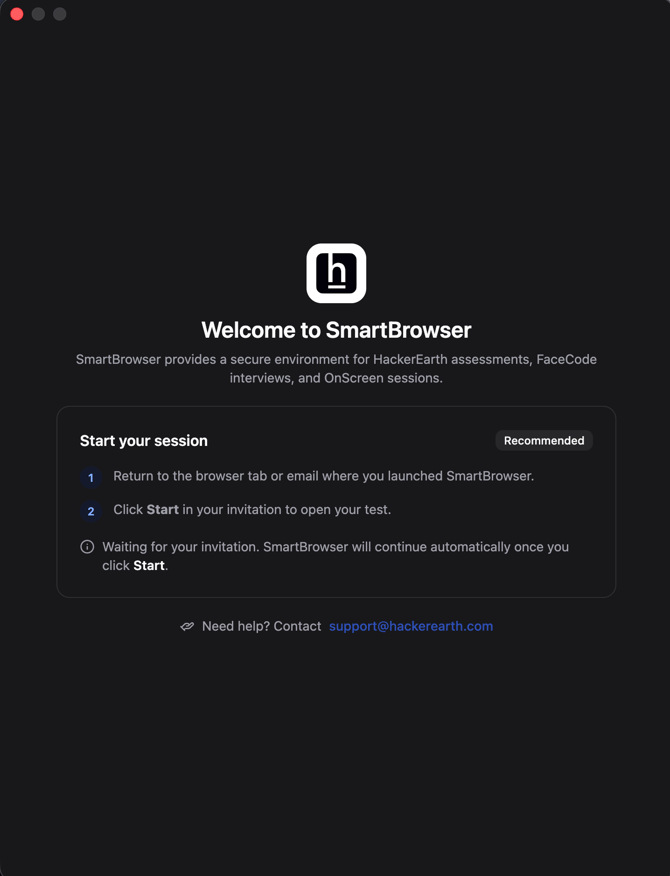
- If Smart Browser is already open and you copied the test/interview link, Smart Browser may detect it and show Resume your session so you can continue without going back to the email.
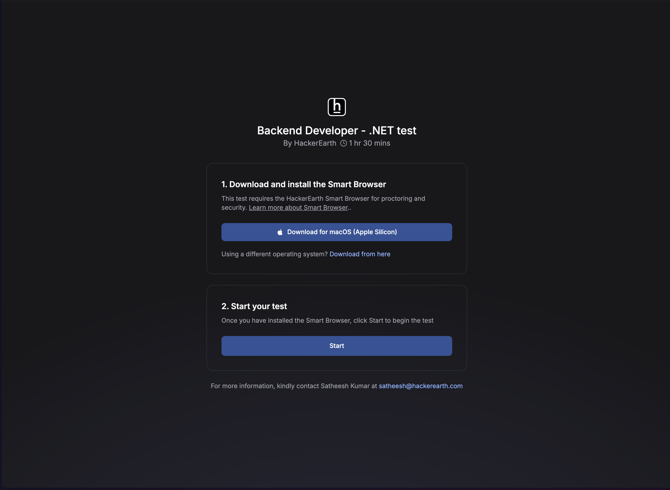
Note: You do not need to type the test URL into Smart Browser. Always use Start from your invitation (or the resume option if your link was copied).
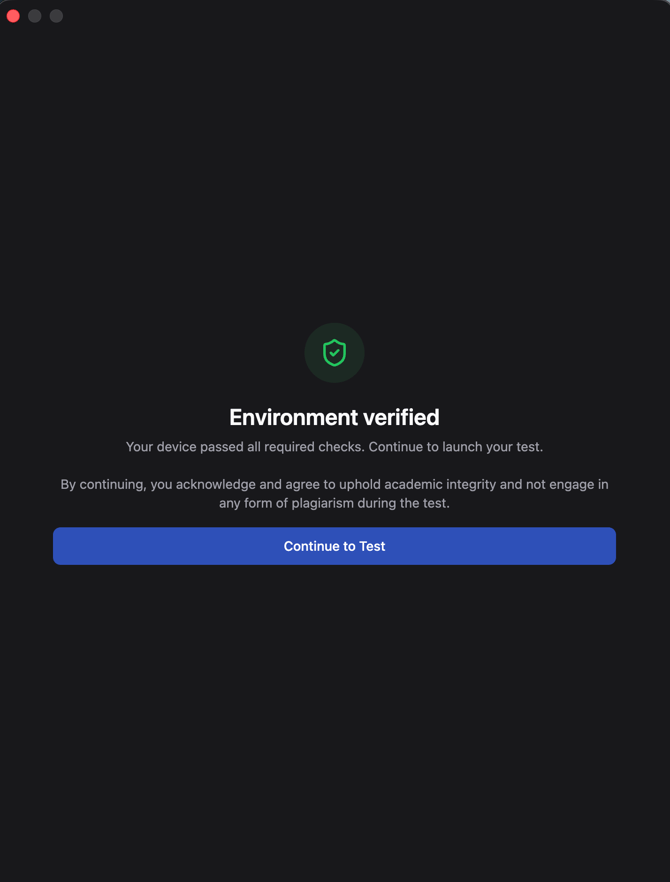
If the app asks you to update, allow the update to finish before continuing.
Before the test
After Smart Browser opens, you may see these steps in order:
- Internet connection — You must be online to continue.
- Windows only — Visual C++ components — If prompted, install the required components and continue.
- Updates — Smart Browser may download and install an update.
- System check — Smart Browser verifies that your device is ready. This typically includes:
- System permissions (camera, microphone, screen recording; on macOS also Full Disk Access when required)
- Display setup (use a single display; avoid screen mirroring / extra monitors)
- Network and required services
- Camera and audio (microphone and speakers), when required for your session
- Welcome / continue — After checks pass, continue into your session using Start from your invitation, or Continue / clipboard resume if shown.
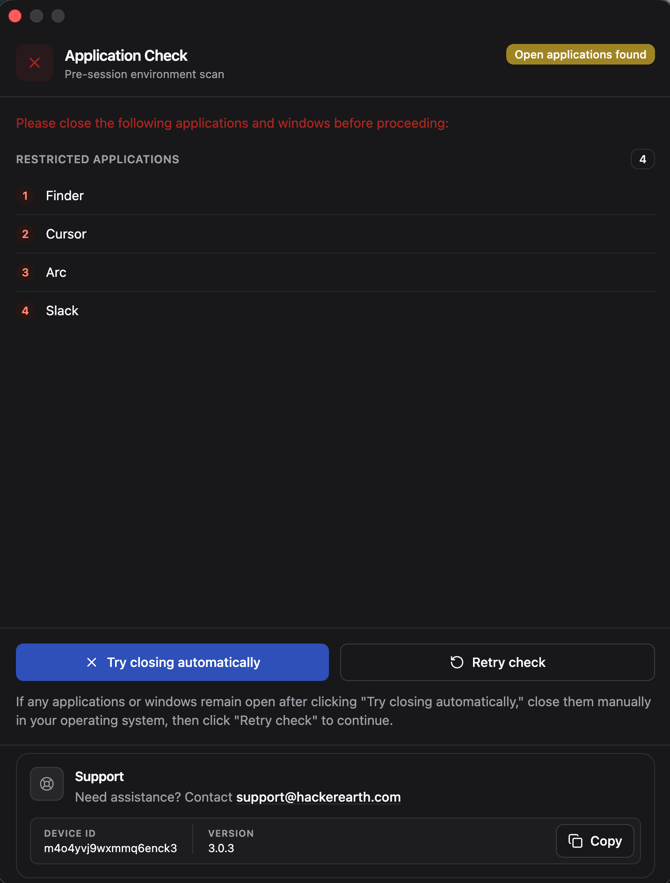
- Close background applications — Smart Browser lists apps that must be closed. You can close them yourself, or choose Try closing automatically.
- Note: Some apps may not close automatically. Close those manually in your operating system, then retry.
- Test agreement — Read and accept the agreement before the secured test or interview window opens.
Tips for a smooth system check
- Grant all requested permissions when prompted. On macOS, you may need to allow permissions in System Settings and, in some cases, restart Smart Browser.
- Use one monitor only; disconnect extra displays and turn off mirroring.
- Close other apps that use the camera or microphone (video calls, virtual cameras, IR/Windows Hello helpers if they interfere).
- Do not run the assessment inside a virtual machine or with remote-desktop access enabled when the check flags that.
During the test
Once the session starts, Smart Browser runs in a secured full-screen environment.
- Do not switch away from the test, exit full screen, open other applications, or use extra / mirrored displays.
- If you leave the test screen or open a restricted app, Smart Browser shows a security warning.
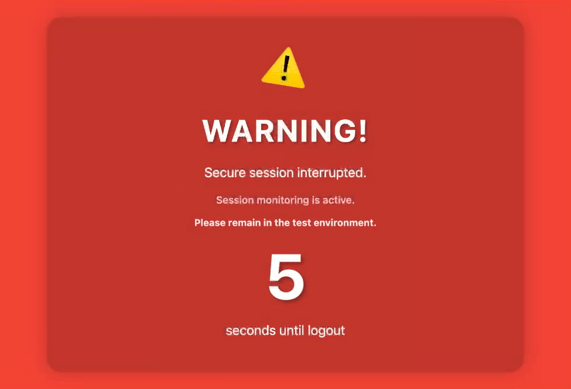
- You must return to the test within 10 seconds after that warning, or you may be removed from the session.
- The same 10-second window can apply if an external or mirrored display is detected.
- Do not take screenshots or record the screen. Smart Browser blocks or protects against capture where possible.
- A small session control (dock) may be available for allowed actions such as refresh or exit; use exit only if you intend to leave the session.
After the test and reconnecting
- When you finish the test or interview, Smart Browser shows a completion screen and then closes automatically after a short countdown.
- If you were disconnected because of a technical issue, you can usually resume by:
- Opening your invitation email/page and clicking Start again, or
- Relaunching Smart Browser (if you copied the session link, use Resume when it appears).
Important notes
- Keep Smart Browser updated; prefer the in-app update over installing older copies.
- Use a stable internet connection for the full session.
- For known issues and quick fixes, refer to the linked troubleshooting article.
- For further help, contact support@hackerearth.com.
To learn more about Smart Browser, you can watch the video here: