
Set up SSO with OneLogin
Set up SSO with Onelogin
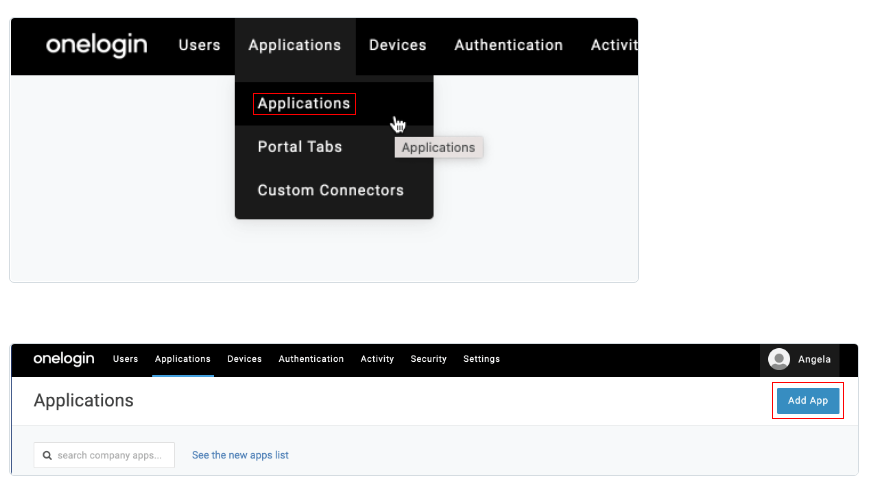
- Log in to Onelogin as an administrator. Select Applications from the menu bar and click Applications. Click Add App button in the top right corner.
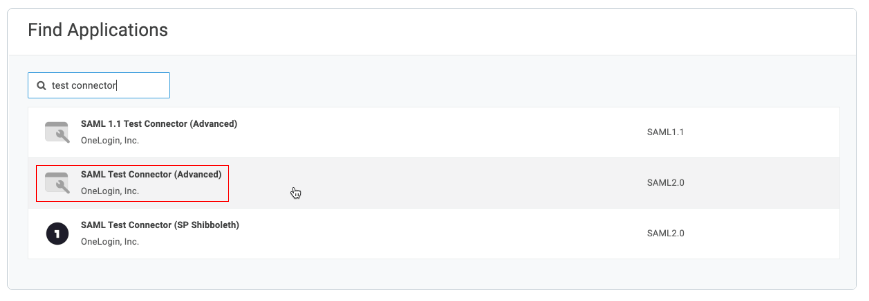
- Search for a test connector on Find Applications page. From the filtered list, select SAML Test Connector (Advanced) for SAML 2.0.
- Enter HackerEarth as the Display Name of the new app, and make sure to select Visible in portal. If you would like to upload a HackerEarth logo, click on the Rectangular icon and Square icon and select the images you want to use. You can take these from our logos file. Click Save when you are done with your changes.
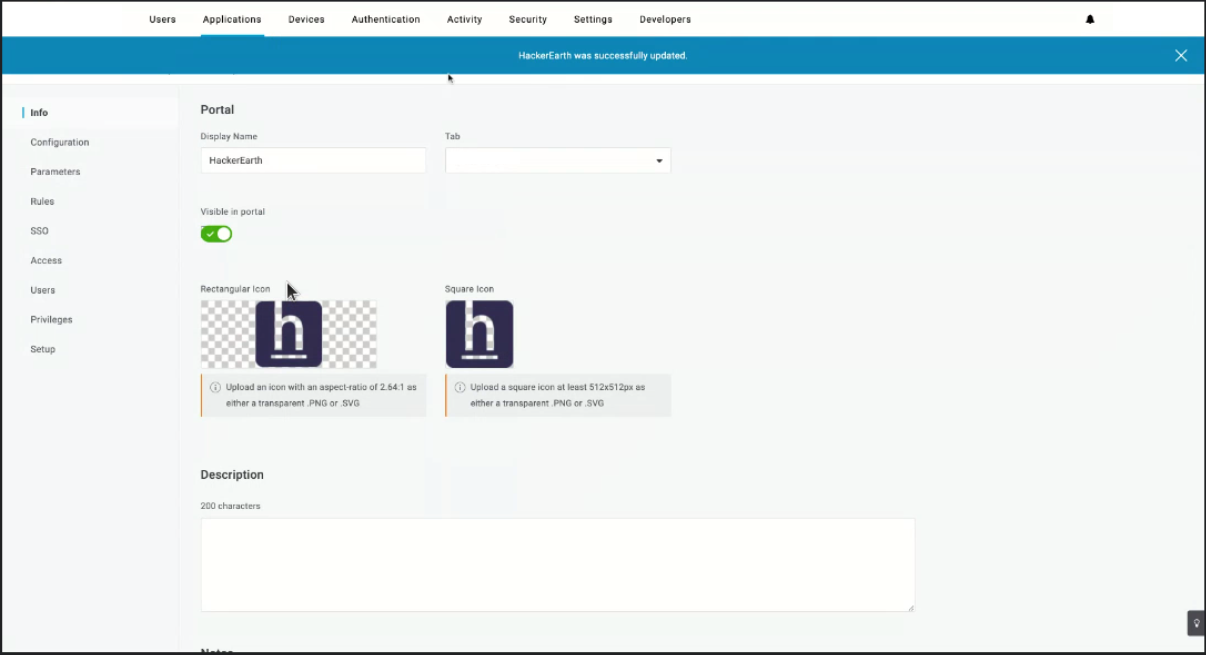
- Click Save to store the app settings.
- Click Parameters in the left navigation menu. Click the + button to add a new field.
- Type in EmailAddress as the name in the popup and check Include in SAML assertion. Click - No default - in the value column on the next screen and select Email as the value from the dropdown.
- Repeat this process for two more fields. Create a field FirstName with the value mapped to First Name, and LastName mapped to value the Last Name. You will have EmailAddress, LastName, and LastName when you're back on the Parameters screen.

- You have to grant your users permission to the application you just created, either by adding to individual Users or by adding to Roles or Groups within OneLogin according to how you prefer to manage your Users there.
- Select SAML Metadata from the More Actions drop-down menu to obtain a copy of the Federation Metadata, it will be saved as onelogin_metadata_#######.xml.

- Share the metadata file with HackerEarth.
- HackerEarth will configure your details and share the metadata file
- Once you receive HackerEarth’s metadata file, click Configuration. Paste the entityID from HackerEarth metadata into the Audience field. Paste the AssertionConsumerService HTTP-POST URL to both the ACS (Consumer) URL and ACS (Consumer) URL Validator. Enter Event login page URL in Login URL field.
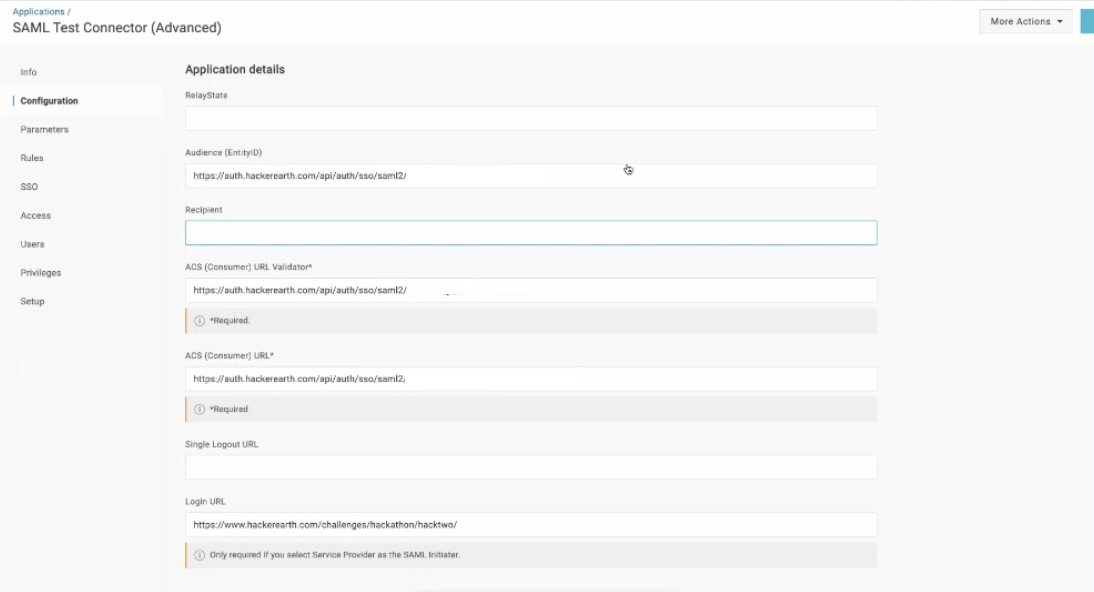
- Click Save and Test the SSO integration.