---
title: Updating proctoring settings for an OnScreen template
description: Updating proctoring settings while creating templates and for existing templates
---
[Skip to content](https://help.hackerearth.com/updating-proctoring-settings-for-an-onscreen-template#main-content)

Open main navigation
Close main navigation
Hello. How can we help you?
- There are no suggestions because the search field is empty.
1. [Help Center](https://help.hackerearth.com/?hsLang=en)
2. [OnScreen](https://help.hackerearth.com/onscreen?hsLang=en)
3. [OnScreen - Interview Proctoring Settings](https://help.hackerearth.com/onscreen?hsLang=en#onscreen-interview-proctoring-settings)
# Updating proctoring settings for an OnScreen template
Proctoring controls are the integrity checks that run during an OnScreen interview. You can set them while you create a template, and change them at any time afterwards.
The following controls are available:
- **AI Likeness Detection**: Analyzes candidate responses for similarity with AI-generated language.
- **Enforce Smart Browser**: Requires the Smart Browser, which prevents the use of external applications during the interview.
- **Enforce Candidate Video**: Records candidate video and flags issues such as a missing candidate, multiple candidates, or mobile phone usage during the interview.
- **ID Verification**: Requires candidates to verify their identity before starting the interview.
#### Setting proctoring controls while creating a template
While you build a template in the AI builder, the **Proctoring settings** section of the draft pane shows which controls are on and which are off. A tick means the control is on and a cross means it is off.
To change them, follow these steps:
1. In the draft pane, click **Proctoring settings**. The list of controls is displayed.
2. Select the checkbox beside each control that you want to turn on, and clear the checkbox beside each control that you want to turn off.
3. Continue building the template.
The chip above the chat box shows how many controls are active, for example, **2 active**. The chat also confirms each change as you make it — for example, *Updated Smart Browser to enabled*.
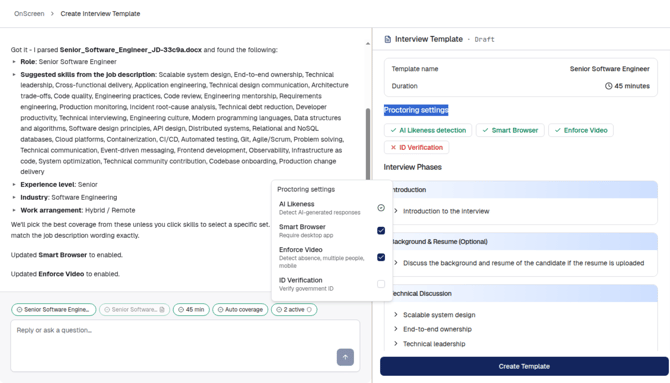
**Note**: You can also ask the AI builder to change the proctoring settings in the chat, instead of using the list.
#### Updating proctoring controls for an existing template
To change the proctoring controls of a template that has already been created, follow these steps:
1. Log in to your HackerEarth Recruit account by using your admin credentials.
2. In the left panel, click **OnScreen**.
3. Open the template that you want to update.
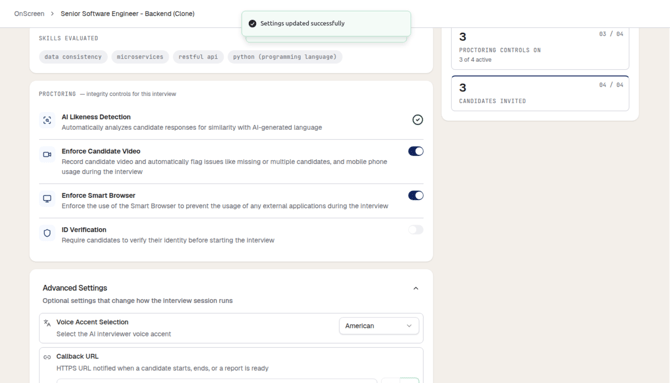
4. On the **Overview** tab, scroll to the **Proctoring** section.
5. Use the toggle beside each control to turn it on or off.
Your changes are saved automatically and the message **Settings updated successfully** is displayed. The **Proctoring controls on** card in the **At a glance** section updates to show how many controls are active, for example, **3 of 4 active**.
- [Assessments: Recruiters](https://help.hackerearth.com/assessments-recruiters?hsLang=en#main-content)
- [Getting started](https://help.hackerearth.com/assessments-recruiters?hsLang=en#getting-started)
- [Account settings](https://help.hackerearth.com/assessments-recruiters?hsLang=en#account-settings)
- [Admin management](https://help.hackerearth.com/assessments-recruiters?hsLang=en#admin-management)
- [Creating tests automatically](https://help.hackerearth.com/assessments-recruiters?hsLang=en#creating-tests-automatically)
- [Creating tests manually](https://help.hackerearth.com/assessments-recruiters?hsLang=en#creating-tests-manually)
- [Test settings](https://help.hackerearth.com/assessments-recruiters?hsLang=en#test-settings)
- [Sections and question pooling](https://help.hackerearth.com/assessments-recruiters?hsLang=en#sections-and-question-pooling)
- [Libraries](https://help.hackerearth.com/assessments-recruiters?hsLang=en#libraries)
- [Multiple Choice Questions (MCQs)](https://help.hackerearth.com/assessments-recruiters?hsLang=en#multiple-choice-questions-mcqs)
- [Programming](https://help.hackerearth.com/assessments-recruiters?hsLang=en#programming)
- [Project](https://help.hackerearth.com/assessments-recruiters?hsLang=en#project)
- [SQL](https://help.hackerearth.com/assessments-recruiters?hsLang=en#sql)
- [Data science](https://help.hackerearth.com/assessments-recruiters?hsLang=en#data-science)
- [Machine Learning (ML)](https://help.hackerearth.com/assessments-recruiters?hsLang=en#machine-learning-ml)
- [DevOps](https://help.hackerearth.com/assessments-recruiters?hsLang=en#devops)
- [Python project questions](https://help.hackerearth.com/assessments-recruiters?hsLang=en#python-project-questions)
- [Automation Testing](https://help.hackerearth.com/assessments-recruiters?hsLang=en#automation-testing)
- [Java Project](https://help.hackerearth.com/assessments-recruiters?hsLang=en#java-project)
- [C# project questions](https://help.hackerearth.com/assessments-recruiters?hsLang=en#c-project-questions)
- [Subjective](https://help.hackerearth.com/assessments-recruiters?hsLang=en#subjective)
- [Approximate](https://help.hackerearth.com/assessments-recruiters?hsLang=en#approximate)
- [Diagram](https://help.hackerearth.com/assessments-recruiters?hsLang=en#diagram)
- [File upload](https://help.hackerearth.com/assessments-recruiters?hsLang=en#file-upload)
- [Invites](https://help.hackerearth.com/assessments-recruiters?hsLang=en#invites)
- [Reports](https://help.hackerearth.com/assessments-recruiters?hsLang=en#reports)
- [Billing](https://help.hackerearth.com/assessments-recruiters?hsLang=en#billing)
- [HackerEarth Reports: Admins, Tests, and Teams](https://help.hackerearth.com/assessments-recruiters?hsLang=en#hackerearth-reports-admins-tests-and-teams)
- [Technical Content Updates](https://help.hackerearth.com/assessments-recruiters?hsLang=en#technical-content-updates)
- [FaceCode](https://help.hackerearth.com/facecode?hsLang=en#main-content)
- [FaceCode and its features](https://help.hackerearth.com/facecode?hsLang=en#facecode-and-its-features)
- [Scheduling interviews on FaceCode](https://help.hackerearth.com/facecode?hsLang=en#scheduling-interviews-on-facecode)
- [Assessments: ATS integrations](https://help.hackerearth.com/assessments-ats-integrations?hsLang=en#main-content)
- [Integration](https://help.hackerearth.com/assessments-ats-integrations?hsLang=en#integration)
- [iCIMS](https://help.hackerearth.com/assessments-ats-integrations?hsLang=en#icims)
- [Zoho Recruit](https://help.hackerearth.com/assessments-ats-integrations?hsLang=en#zoho-recruit)
- [SmartRecruiters](https://help.hackerearth.com/assessments-ats-integrations?hsLang=en#smartrecruiters)
- [EightFold](https://help.hackerearth.com/assessments-ats-integrations?hsLang=en#eightfold)
- [SuccessFactors](https://help.hackerearth.com/assessments-ats-integrations?hsLang=en#successfactors)
- [Greenhouse](https://help.hackerearth.com/assessments-ats-integrations?hsLang=en#greenhouse)
- [Lever](https://help.hackerearth.com/assessments-ats-integrations?hsLang=en#lever)
- [Linkedin Talent Hub](https://help.hackerearth.com/assessments-ats-integrations?hsLang=en#linkedin-talent-hub)
- [JazzHR](https://help.hackerearth.com/assessments-ats-integrations?hsLang=en#jazzhr)
- [Workable](https://help.hackerearth.com/assessments-ats-integrations?hsLang=en#workable)
- [Recruiterbox - Trakstar Hire](https://help.hackerearth.com/assessments-ats-integrations?hsLang=en#recruiterbox-trakstar-hire)
- [Jobvite](https://help.hackerearth.com/assessments-ats-integrations?hsLang=en#jobvite)
- [Ashby](https://help.hackerearth.com/assessments-ats-integrations?hsLang=en#ashby)
- [Assessments: Product updates](https://help.hackerearth.com/assessments-product-updates?hsLang=en#main-content)
- [Release notes: HackerEarth Assessment](https://help.hackerearth.com/assessments-product-updates?hsLang=en#release-notes-hackerearth-assessment)
- [Root Cause Analysis (RCA)](https://help.hackerearth.com/assessments-product-updates?hsLang=en#root-cause-analysis-rca)
- [Content updates](https://help.hackerearth.com/assessments-product-updates?hsLang=en#content-updates)
- [Assessments: Best practices](https://help.hackerearth.com/assessments-best-practices?hsLang=en#main-content)
- [Recruit](https://help.hackerearth.com/assessments-best-practices?hsLang=en#recruit)
- [SSO](https://help.hackerearth.com/sso?hsLang=en#main-content)
- [SSO](https://help.hackerearth.com/sso?hsLang=en#sso)
- [Upskilling](https://help.hackerearth.com/upskilling?hsLang=en#main-content)
- [Introduction: Upskilling](https://help.hackerearth.com/upskilling?hsLang=en#introduction-upskilling)
- [Assessments: Candidates](https://help.hackerearth.com/assessments-candidates?hsLang=en#main-content)
- [Getting started](https://help.hackerearth.com/assessments-candidates?hsLang=en#getting-started)
- [Test environment](https://help.hackerearth.com/assessments-candidates?hsLang=en#test-environment)
- [Question types](https://help.hackerearth.com/assessments-candidates?hsLang=en#question-types)
- [FaceCode](https://help.hackerearth.com/assessments-candidates?hsLang=en#facecode)
- [Feedback and queries](https://help.hackerearth.com/assessments-candidates?hsLang=en#feedback-and-queries)
- [Problem setting for HackerEarth](https://help.hackerearth.com/problem-setting-for-hackerearth?hsLang=en#main-content)
- [Rate cards](https://help.hackerearth.com/problem-setting-for-hackerearth?hsLang=en#rate-cards)
- [Campus](https://help.hackerearth.com/campus?hsLang=en#main-content)
- [Recruiters](https://help.hackerearth.com/campus?hsLang=en#recruiters)
- [Recruiter FAQs](https://help.hackerearth.com/campus?hsLang=en#recruiter-faqs)
- [Candidate FAQs](https://help.hackerearth.com/campus?hsLang=en#candidate-faqs)
- [Hackathons and Hiring Challenges](https://help.hackerearth.com/hackathons-and-hiring-challenges?hsLang=en#main-content)
- [Hackathons](https://help.hackerearth.com/hackathons-and-hiring-challenges?hsLang=en#hackathons)
- [Hiring challenges](https://help.hackerearth.com/hackathons-and-hiring-challenges?hsLang=en#hiring-challenges)
- [Frequently Asked Questions (FAQs)](https://help.hackerearth.com/frequently-asked-questions-faqs?hsLang=en#main-content)
- [Assessments: Recruiters](https://help.hackerearth.com/frequently-asked-questions-faqs?hsLang=en#assessments-recruiters)
- [GDPR compliance (Candidates)](https://help.hackerearth.com/frequently-asked-questions-faqs?hsLang=en#gdpr-compliance-candidates)
- [GDPR compliance (Recruiters)](https://help.hackerearth.com/frequently-asked-questions-faqs?hsLang=en#gdpr-compliance-recruiters)
- [General](https://help.hackerearth.com/frequently-asked-questions-faqs?hsLang=en#general)
- [Assessments: Candidates](https://help.hackerearth.com/frequently-asked-questions-faqs?hsLang=en#assessments-candidates)
- [HackerEarth Vs ChatGPT](https://help.hackerearth.com/frequently-asked-questions-faqs?hsLang=en#hackerearth-vs-chatgpt)
- [Profiles](https://help.hackerearth.com/profiles?hsLang=en#main-content)
- [Profiles - Recruiter](https://help.hackerearth.com/profiles?hsLang=en#profiles-recruiter)
- [OnScreen](https://help.hackerearth.com/onscreen?hsLang=en#main-content)
- [OnScreen - Interview templates](https://help.hackerearth.com/onscreen?hsLang=en#onscreen-interview-templates)
- [OnScreen - Sending Invites](https://help.hackerearth.com/onscreen?hsLang=en#onscreen-sending-invites)
- [OnScreen - Download reports](https://help.hackerearth.com/onscreen?hsLang=en#onscreen-download-reports)
- [OnScreen - Interview Analytics](https://help.hackerearth.com/onscreen?hsLang=en#onscreen-interview-analytics)
- [OnScreen - Overview](https://help.hackerearth.com/onscreen?hsLang=en#onscreen-overview)
- [OnScreen - Interview Proctoring Settings](https://help.hackerearth.com/onscreen?hsLang=en#onscreen-interview-proctoring-settings)
[](https://www.hackerearth.com/)
##### The skills intelligence platform for the AI era. Evaluate developers, candidates, and AI agents.
© 2026 HackerEarth · All rights reserved