
Dashboard elements explained
The administrator dashboard allows you to view your tests, questions library, FaceCode, and ongoing tests.
This page summarizes your account details, including live tests, live interviews, and previously-conducted tests.
This is what the dashboard of your HackerEarth Recruit account looks like:
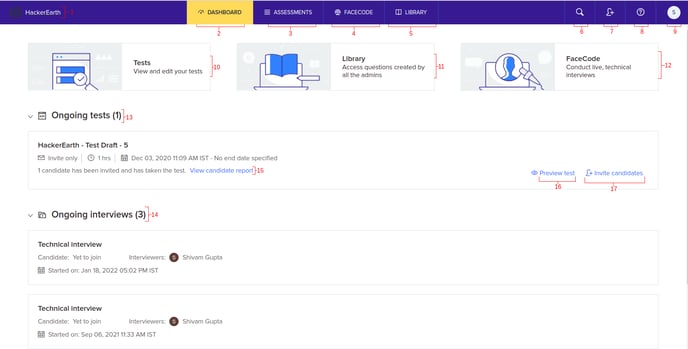
|
S. No. |
Title |
Explanation |
|
1 |
HackerEarth |
This button redirects you to the Administrator dashboard if you are on some other tab or section. |
|
2 |
Dashboard |
This button redirects you to the Administrator dashboard. |
|
3 |
Assessments |
This button will open up the Assessment dashboard, where you can see all the ongoing tests, search for any test or tag, and create new tests. |
|
4 |
FaceCode |
This will redirect you to the FaceCode dashboard, where you can see your interviews or create a new one. |
|
5 |
Library |
This will show you the HackerEarth Library, where you can view the questions and create new questions in My library. |
|
6 |
Search candidates |
This allows you to search for a particular candidate by entering their name. and you will get a list of all the tests they have taken before. |
|
7 |
Add admins |
This allows you to add admins to the Recruit platform. |
|
8 |
Help |
This allows you to enter any query related to the Recruit platform. |
|
9 |
Your name |
When you click this, the following options will be displayed:
|
|
10 |
Tests |
Redirects you to the test dashboard |
|
11 |
Library |
Redirects you to the question library |
|
12 |
FaceCode |
Redirects you to the interview interface |
|
13 |
Ongoing tests |
The end date of such tests has not:
The number of candidates who are currently taking the test and the number of candidates who have completed the test is displayed here. |
|
14 |
Ongoing interviews |
This shows all the FaceCode interviews which have not been completed because of the following:
|
|
15 |
View candidate report |
Redirects you to the test dashboard, where you can view the detailed reports of the candidates who have completed your test. |
|
16 |
Preview test |
You can preview the test and see how the test will look from the candidate’s point of view |
|
17 |
Invite candidates |
This allows you to invite candidates directly to the test. |