![HE logo.png]](https://help.hackerearth.com/hs-fs/hubfs/HE%20logo.png?height=40&name=HE%20logo.png)
The Assessments dashboard lets you export two consolidated reports without opening each test one by one:
- Summary of tests — an account-level overview of all the tests created in your account, including who created each test and how many invites have been used. It's emailed to you as an
.xlsattachment. - Summary of candidates — a consolidated report of candidates across your tests, which you can download for a chosen date range or schedule for recurring delivery.
Both reports are available from the same menu on the Assessments page.
Open the download menu
- Log in to HackerEarth and go to the Assessments tab.
- At the top right of the test list, next to Create new test, click the three-dot (•••) menu.
- Select the report you want:
- Download summary of tests
- Download summary of candidates
.png?width=670&height=252&name=image%20(24).png)
Download the tests summary report
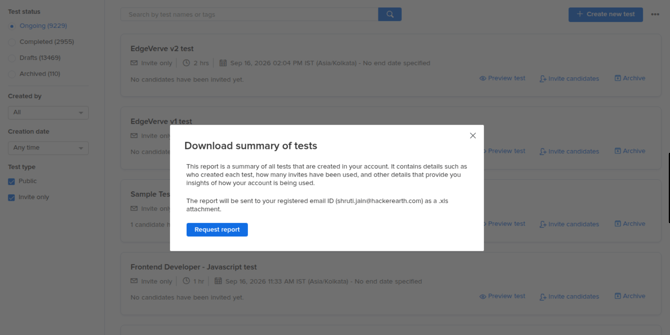
This report covers every test in your account and is sent to you by email rather than downloaded in the browser.
- From the ••• menu, select Download summary of tests.
- Check the email address shown in the dialog — this is the registered email ID the report will be sent to.
- Click Request report.
The report arrives at that address as an .xls attachment.
Download the candidates summary report
- From the ••• menu, select Download summary of candidates.
- On the panel that opens, stay on the Download Report tab.
- Under Who should be included?, choose one:
- Candidates who have taken the test — includes only candidates who attempted a test.
- Invited candidates — includes everyone who was invited, whether or not they attempted the test.
- Under Reporting window, select the date range you want the report to cover. Only activity within this range is included.
- Click Download Now.
Schedule the candidates report for recurring delivery
If you need this report regularly, set up a schedule instead of downloading it each time.
- From the ••• menu, select Download summary of candidates.
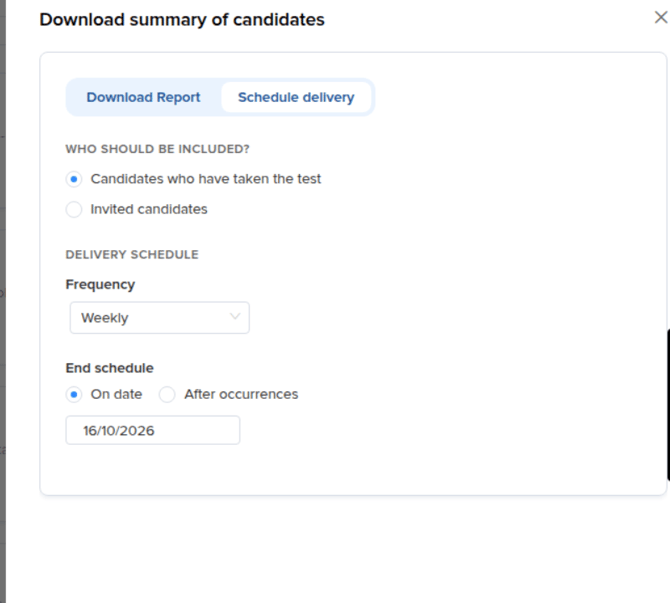
- Switch to the Schedule delivery tab.
- Under Who should be included?, choose Candidates who have taken the test or Invited candidates.
- Under Delivery schedule, set the Frequency at which you want to receive the report.
- Under End schedule, choose when the schedule should stop:
- On date — enter the date after which no more reports are sent.
- After occurrences — enter the number of reports to send before the schedule ends.
- Click Schedule to save it.
-1.png?width=670&height=305&name=image%20(23)-1.png)