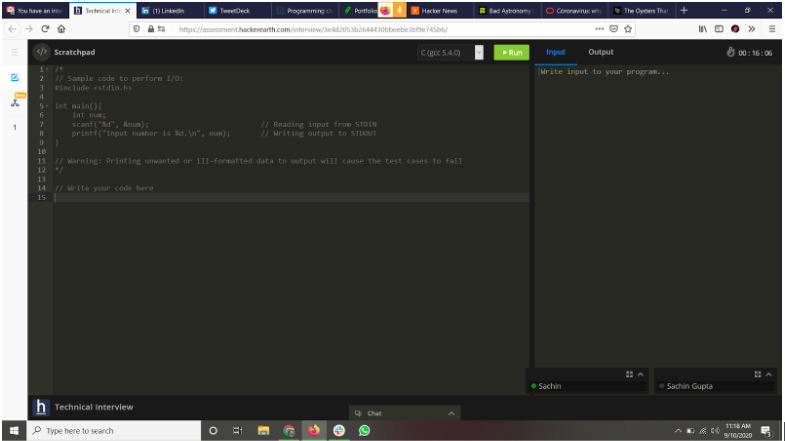
Join the interview
Join the interview
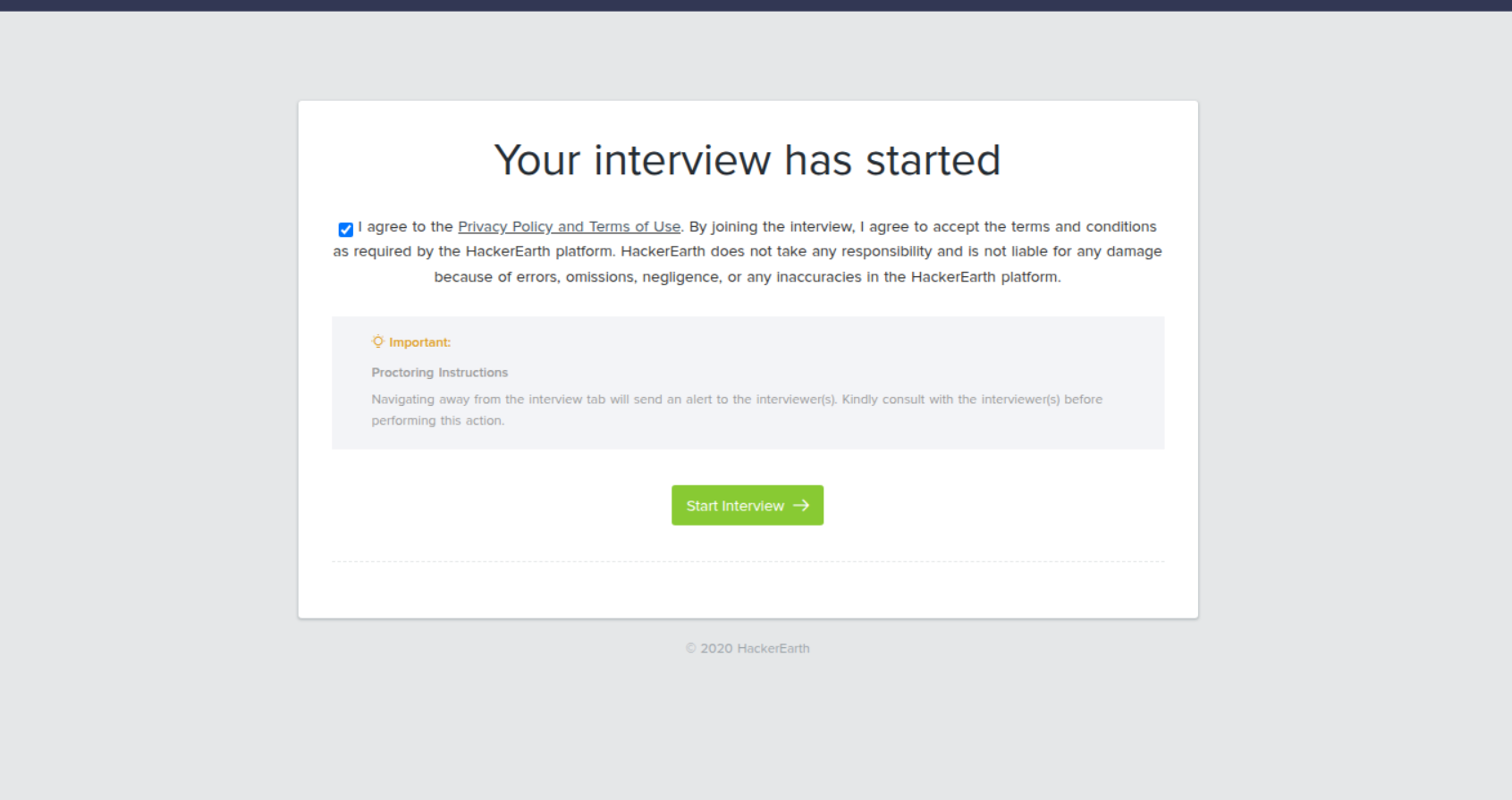
- Click the interview link in your invitation email. The Your interview has started page opens.
- Read the proctoring instructions. If you navigate away from the interview tab, your interviewer gets an alert, so check with them before you do.
- Select the checkbox to agree to the Privacy Policy and Terms of Use, then click Start Interview.
 Verify your identity (if required)
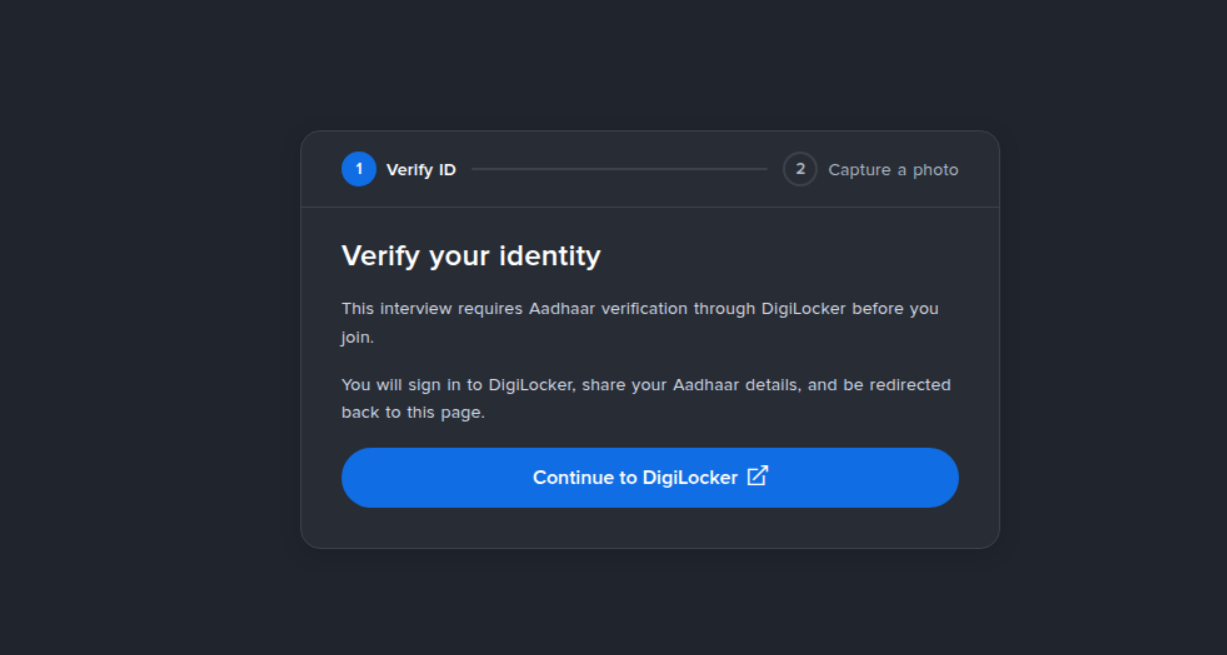
Some interviews require you to verify your identity before joining. If yours does, you'll see two steps: Verify ID and Capture a photo.
- On the Verify your identity screen, click Continue to DigiLocker.
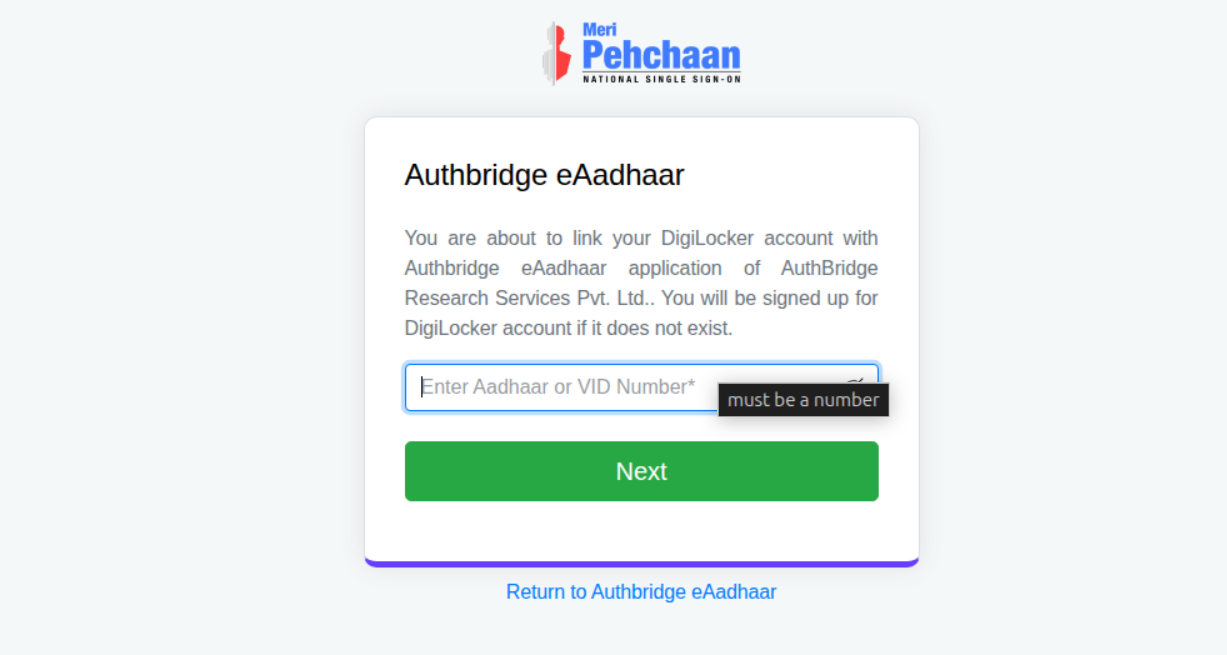
- Enter your Aadhaar number or Virtual ID (VID), and click Next. If you don't have a DigiLocker account, one is created for you.
- UIDAI sends an OTP to your Aadhaar-linked mobile number. Enter it and click Continue. The OTP is valid for 10 minutes. Don't refresh or close the page while you wait.
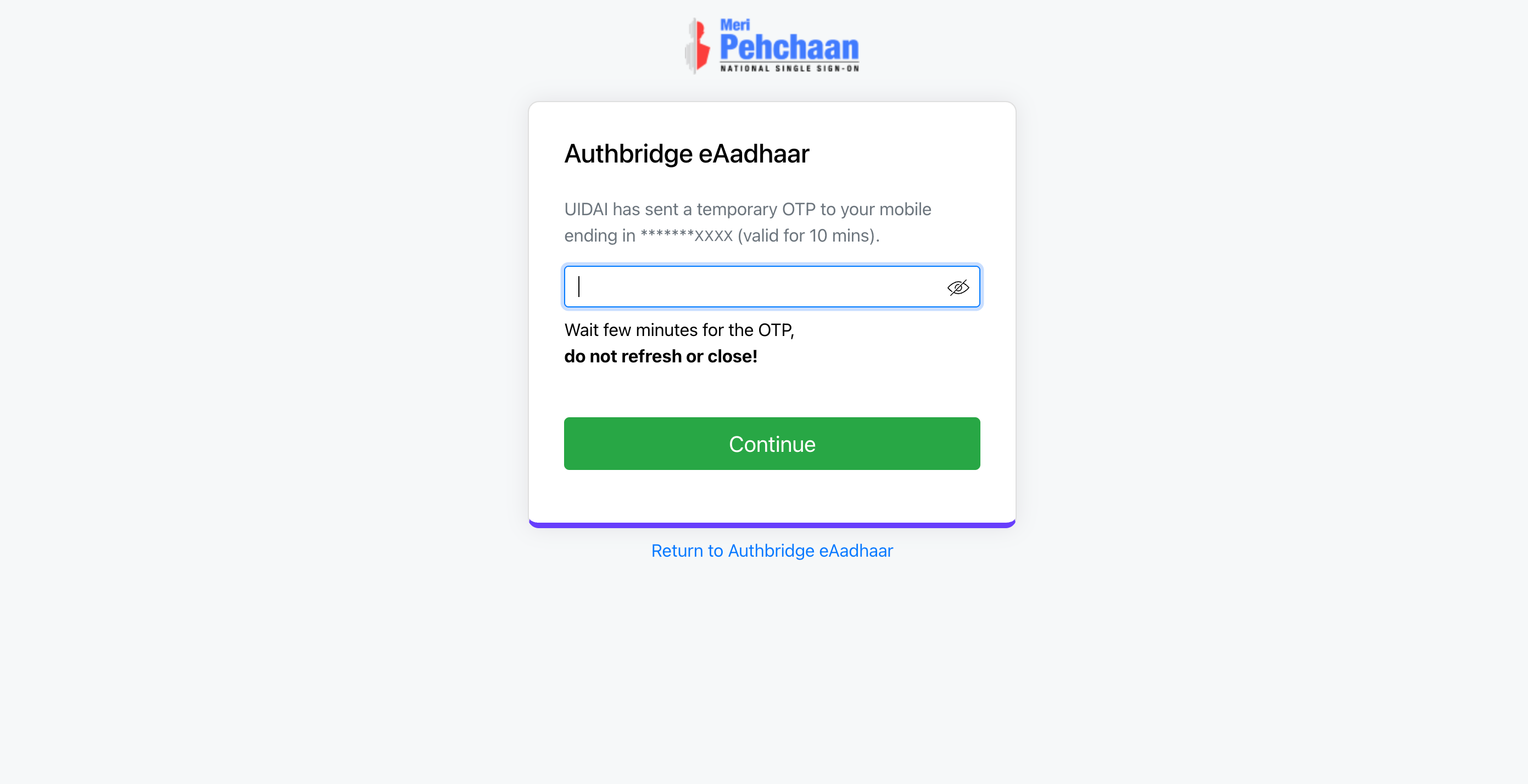
- Allow DigiLocker to share your Aadhaar details. You're taken back to FaceCode, and the first step shows ID verified.
- On the Capture a photo screen, face the camera and click Capture photo. This photo is compared with the photo on your Aadhaar.
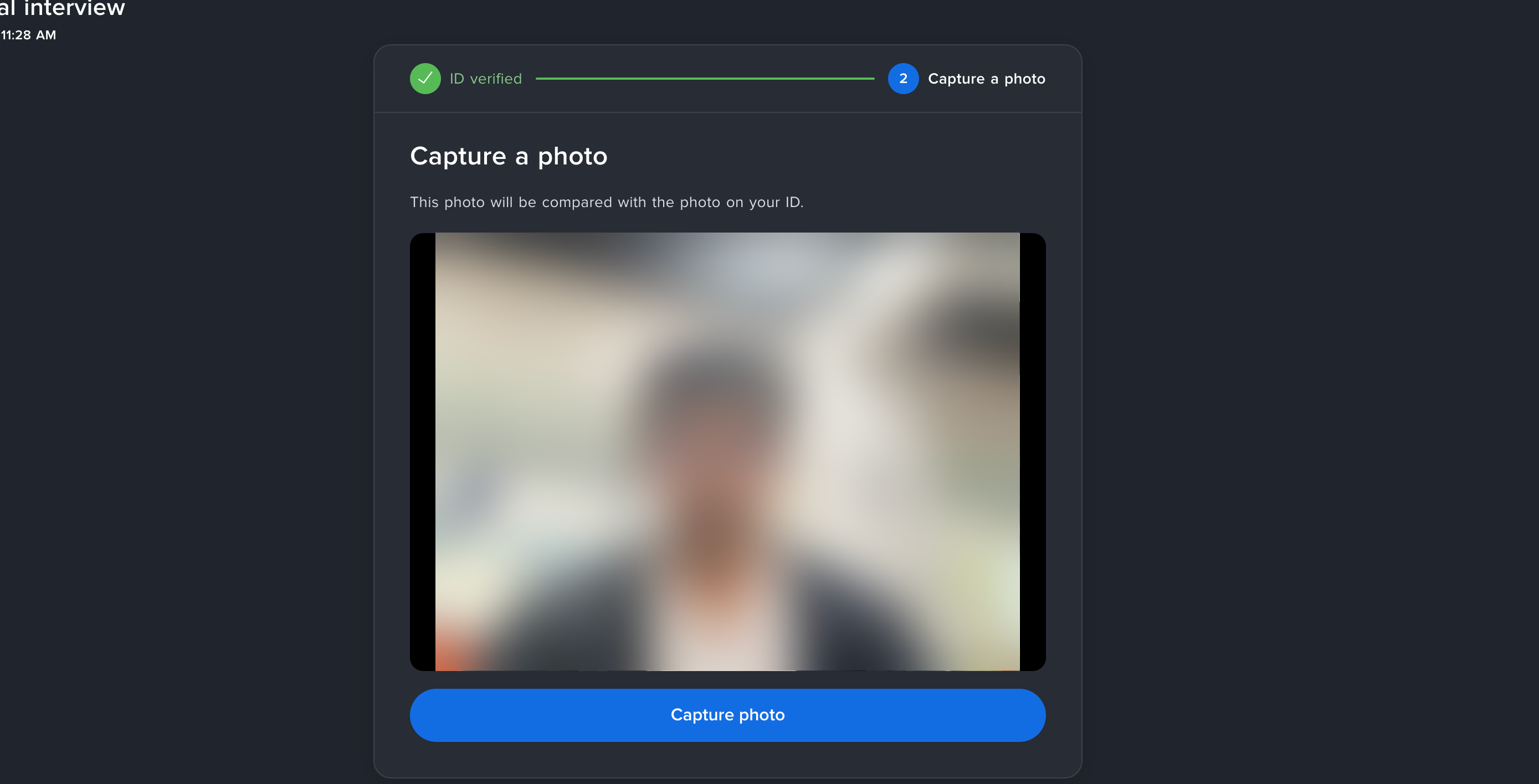
For more details, see ID Verification in FaceCode interviews.
Allow mic and webcam access
Your browser asks for access to your microphone and webcam. You can't enter the interview without it.
Note: In some browsers, you can't join if another video app is using your webcam. Close all other apps that use your webcam before you join.
FaceCode has the following controls.