![HE logo.png]](https://help.hackerearth.com/hs-fs/hubfs/HE%20logo.png?height=40&name=HE%20logo.png)
Overview
ID Verification confirms that the person joining a FaceCode interview is the candidate you invited. The candidate verifies their Aadhaar through DigiLocker, then takes a live snapshot. FaceCode compares the snapshot with the Aadhaar photo and adds the result to the interview report.
This is the same DigiLocker-based flow used for ID verification in HackerEarth Assessments.
Availability: ID Verification is available to companies with the Interview Photo ID Verification feature on their plan. To enable it for your account, contact your account manager or support@hackerearth.com.
nabling ID Verification for an interview
ID Verification is an interview-level proctoring setting, so you turn it on or off for each interview.
When creating an interview
- Log in to your HackerEarth Assessment account.
- In the left navigation bar, click Interviews, then Schedule interview later.
- Fill in the interview details. For help, see Scheduling a new interview.
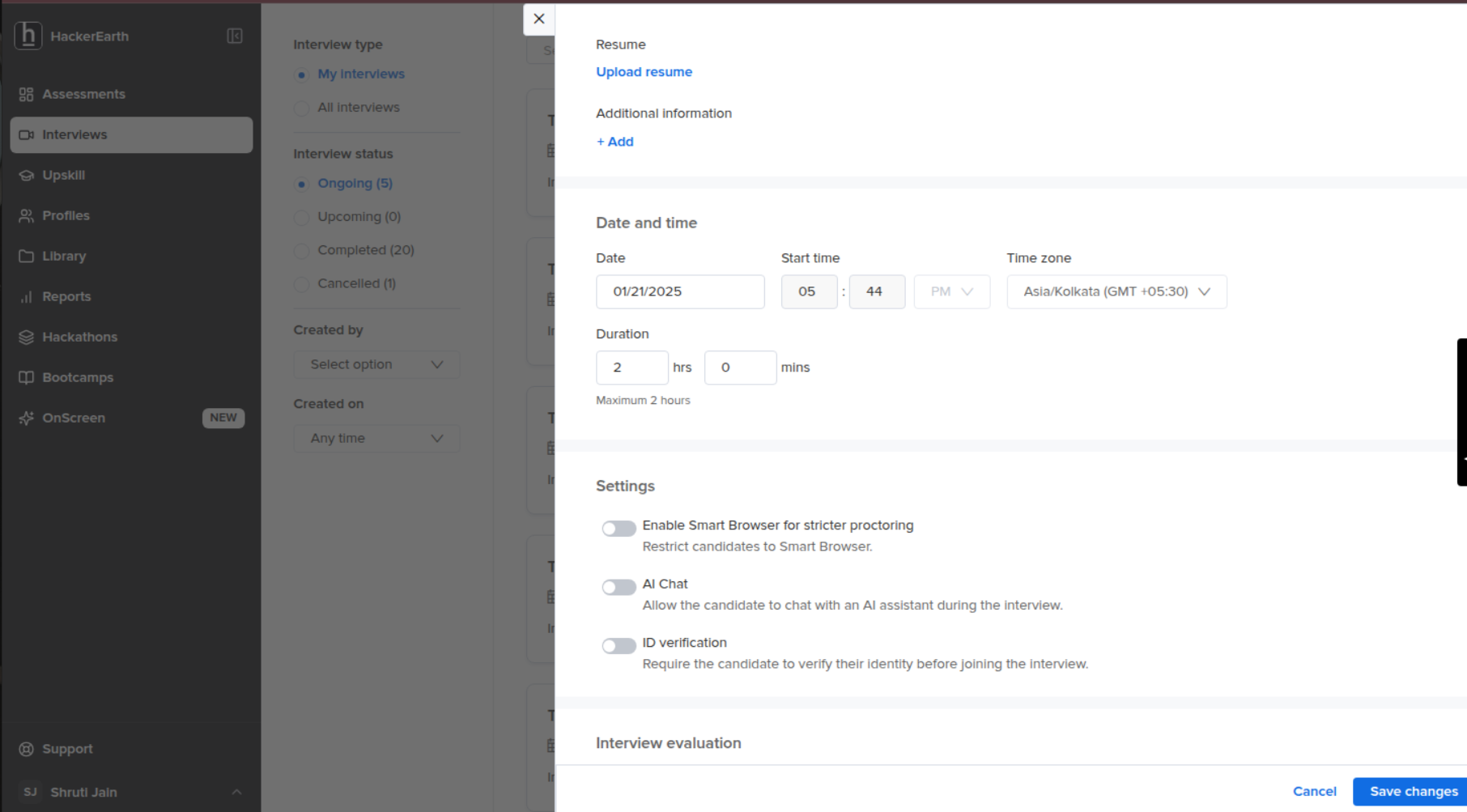
- Scroll down to the Settings section and turn on ID verification.
- Click Schedule interview.
When editing an existing interview
- In the left navigation bar, click Interviews.
- Click the interview you want to edit.
- Scroll down to the Settings section and turn ID verification on or off.
- Click Save changes.
Setting it as a company default
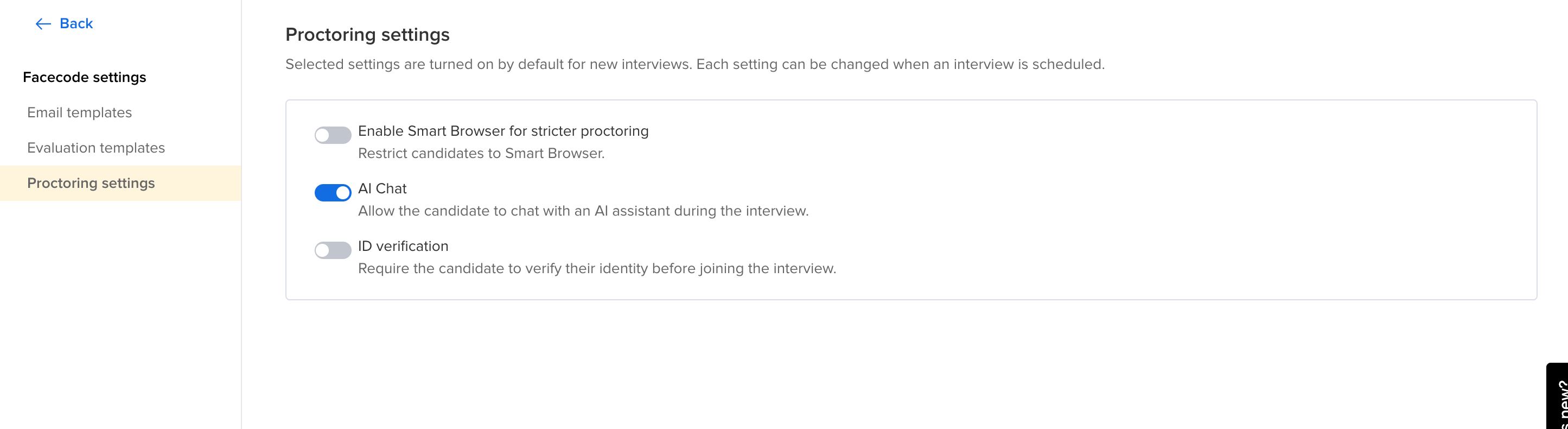
Admins can choose which proctoring settings are on by default for every new interview. Recruiters can still change each setting when they schedule an interview.
- In the left navigation bar, click Interviews.
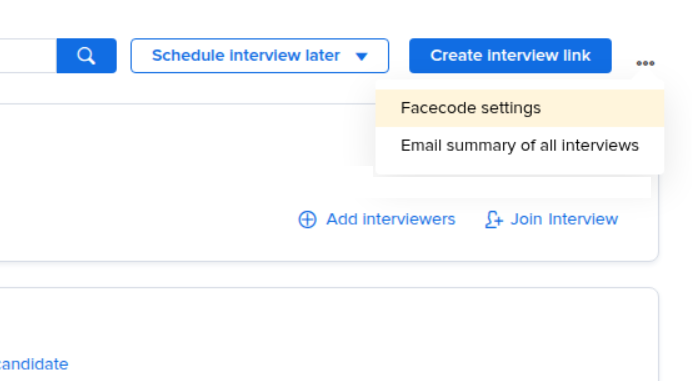
- Click the ⋯ (more options) icon at the top right, next to Create interview link, and select Facecode settings.
- In the left menu, click Proctoring settings.
- Turn on ID verification.
What the candidate does
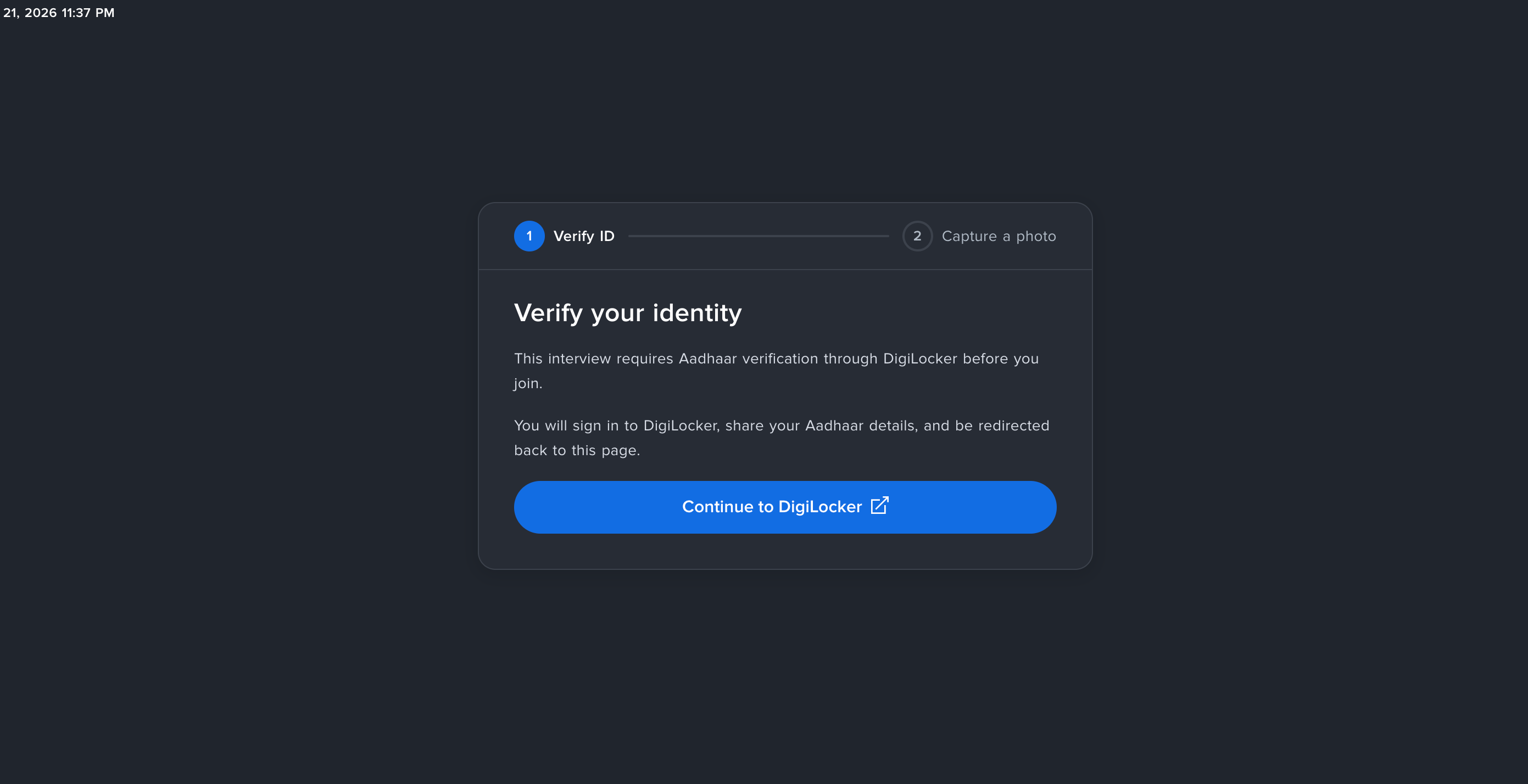
When ID Verification is on, the candidate completes two steps before joining: Verify ID and Capture a photo.
- Click the interview link in the invitation email and enter your name and email address.
- On the Verify your identity screen, click Continue to DigiLocker.
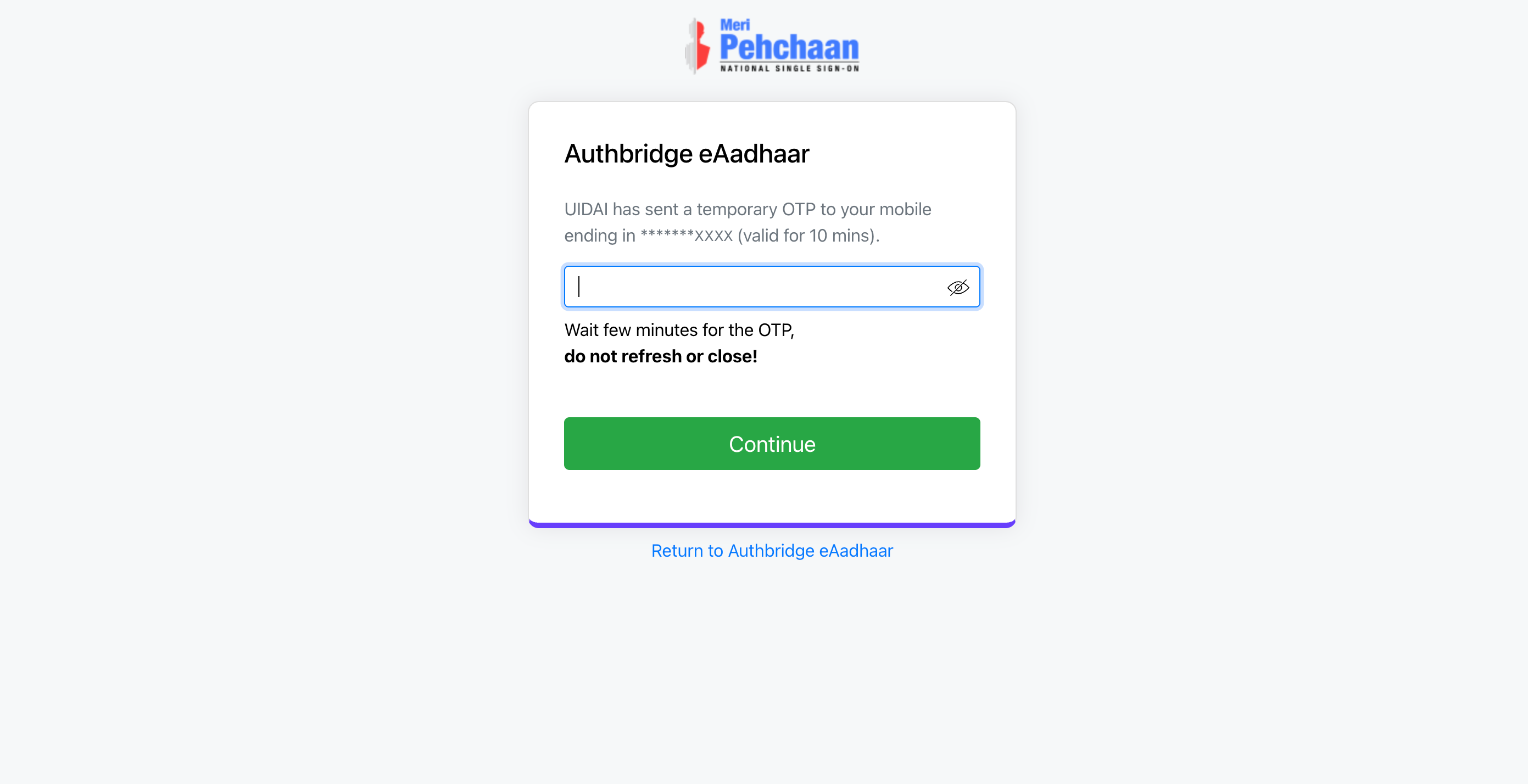
- Sign in to DigiLocker with your Aadhaar. UIDAI sends an OTP to your Aadhaar-linked mobile number. The OTP is valid for 10 minutes.
- Enter the OTP and click Continue. Don't refresh or close the page while you wait for the OTP.
- Allow DigiLocker to share your Aadhaar details. You're taken back to FaceCode, and the first step shows ID verified.
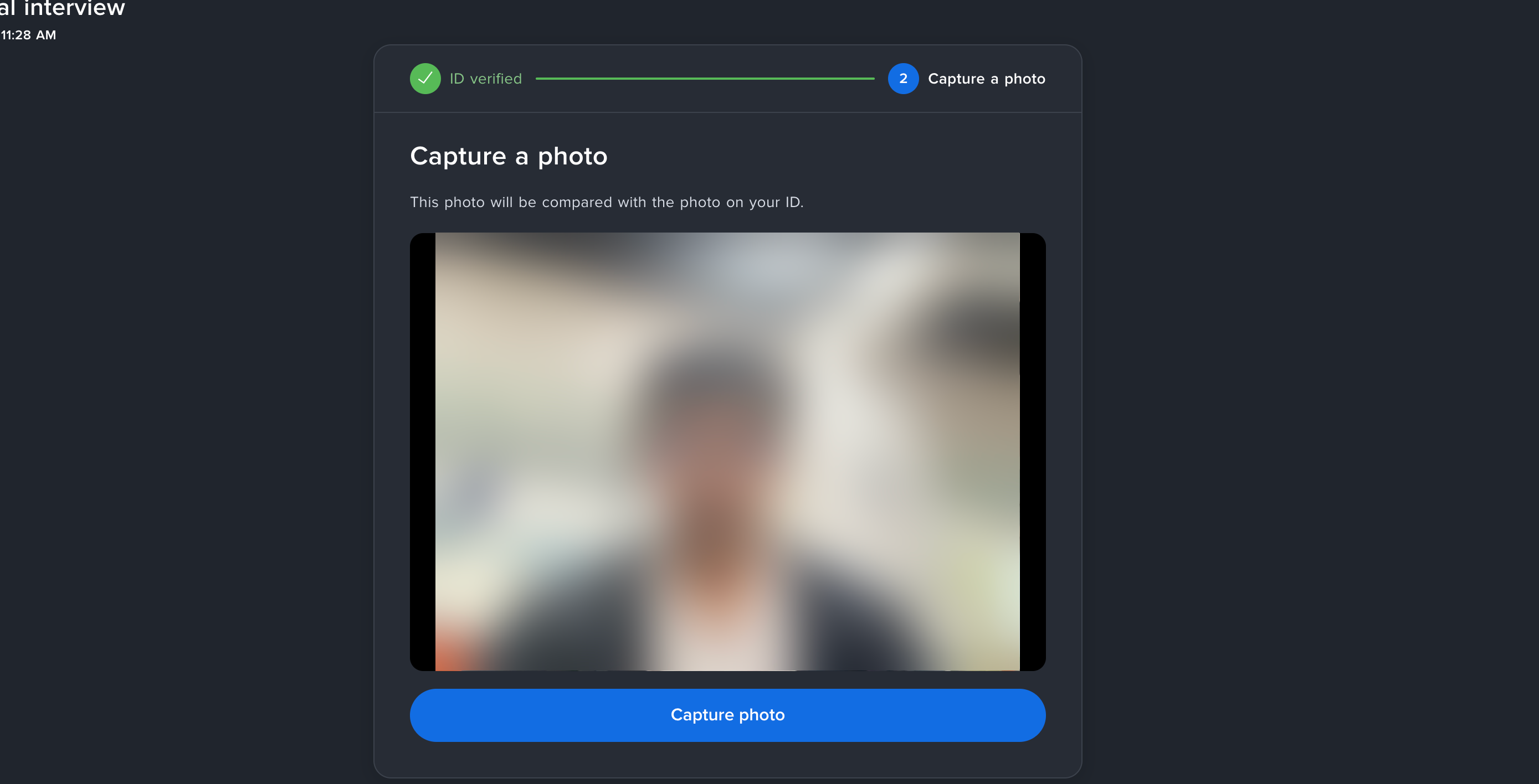
- On the Capture a photo screen, allow webcam access if asked, face the camera, and click Capture photo. This photo is compared with the photo on your Aadhaar.
- Continue to the interview.
Tips for candidates
- Keep your Aadhaar-linked mobile phone with you. The OTP expires after 10 minutes.
- Don't refresh or close the DigiLocker page while you wait for the OTP.
- For the photo, sit in good light and look straight at the camera.
- Close other apps that use your webcam before joining.
Verification results in the report
The result appears in the FaceCode interview report as one of three statuses, based on how closely the snapshot matches the Aadhaar photo.
|
Status |
Match score |
What it means |
|---|---|---|
|
Success |
90% or above |
The snapshot closely matches the Aadhaar photo. |
|
Partial Success |
80% to below 90% |
Likely a match; review the interview recording if in doubt. |
|
Failure |
Below 80% |
The snapshot does not match the Aadhaar photo closely enough. |
Shared report links show the verification status and details but never the photos. Only users in your company account can see the Aadhaar photo and snapshot.
Data privacy and photo retention
Verification photos are stored securely and deleted automatically 365 days after the interview.
- Photos are never included in shared report links.
- HackerEarth uses the Aadhaar photo only to compare it with the candidate's snapshot.
- Candidates can request removal of their interview data at any time by contacting support@hackerearth.com.
FAQs
What if the candidate doesn't have an Aadhaar card? ID Verification currently supports Aadhaar only. Turn it off for that candidate's interview.
Can I turn on ID Verification after scheduling an interview? Yes. Edit the interview and change the setting in the Settings section before it starts.
I don't see the ID Verification setting. Why? Your account may not have the Interview Photo ID Verification feature. Contact your account manager or support@hackerearth.com.
Is this the same as ID verification in tests? Yes. FaceCode now uses the same DigiLocker-based Aadhaar verification as HackerEarth Assessments.