
The Overview tab shows a summary of the test's questions and its admins. Test details such as the name, access and dates now live in the Settings tab.
To see the overview of a test, follow these steps:
- Log in to HackerEarth Assessments by using your admin credentials.
- Click Assessments.
- Click the name of the assessment whose overview you want to see.
- Click the Overview tab.
Overview
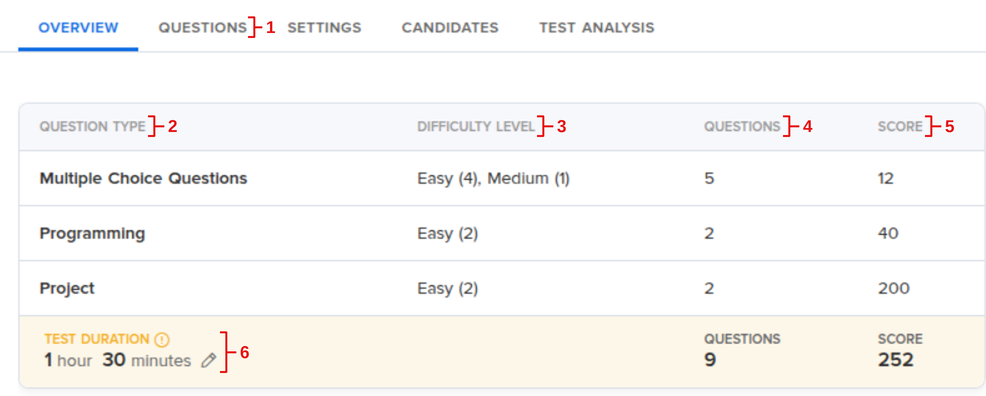
This section summarizes the questions in the test by type, difficulty and score.
| S. No. | Description |
|
1 |
Click the Questions tab to view all the questions in the assessment. |
|
2 |
This shows the question types in the assessment, such as Multiple Choice Questions, Programming and Project. |
|
3 |
This shows the difficulty level of the questions and how many questions there are at each level. |
|
4 |
This shows the number of questions of each question type. |
|
5 |
This shows the total score for each question type. |
|
6 |
This shows the total duration of the assessment. Click the pencil icon to edit it. |
The last row also shows the total number of questions and the total score of the assessment.
Test admins
You can view and add the admins of your test in the Overview section.

|
S. No. |
Description |
|---|---|
|
1 |
This is used to select the point of contact (POC) for the test. The POC is marked with a POC tag next to their name. |
|
2 |
This is used to add admins to the test. |
|
3 |
This shows the names of all the admins. |
|
4 |
This shows the email ID of each admin. |
|
5 |
This shows the access controls of each admin for the assessment. |
|
6 |
This is used to delete an admin from the assessment. |
Settings
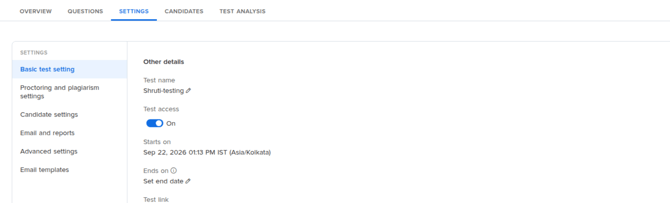
All test settings are now in the Settings tab, grouped into the following sections in the left panel:
- Basic test setting
- Proctoring and plagiarism settings
- Candidate settings
- Email and reports
- Advanced settings
- Email templates
Click a section to view and edit its settings. To know more about test settings, click here.
Other details
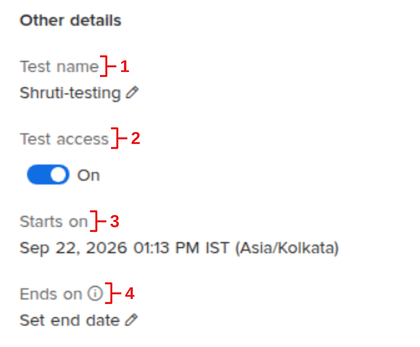
You can view and edit the details of the test in Settings > Basic test setting > Other details.
|
S. No. |
Description |
|---|---|
|
1 |
This shows the name of the assessment. |
|
2 |
This is used to turn test access on or off. |
|
3 |
This shows the start date and time of the test, along with its time zone. |
|
4 |
This shows the end date and time of the test. Click Set end date to add one. |
|
5 |
This shows the test link for the assessment. |
|
6 |
This shows the practice test link for the assessment. |
|
7 |
This shows the test type of the assessment. |
|
8 |
This shows the Recruiter API ID. |
Click Reset to the default template to restore the automatically-provided default instructions. After clicking this button, all the new and saved changes are lost.