![HE logo.png]](https://help.hackerearth.com/hs-fs/hubfs/HE%20logo.png?height=40&name=HE%20logo.png)
The Analytics tab shows you how a template is performing across all the candidates who were invited to it. Use it to answer questions about the interview itself rather than about any one candidate — whether invited candidates are actually completing the interview, whether the difficulty is pitched right for the role, and how many candidates are progressing to shortlisting.
To open interview analytics, follow these steps:
- Log in to your HackerEarth Recruit account by using your admin credentials.
- In the left panel, click OnScreen.
- Open the template whose analytics you want to view.
- Click the Analytics tab.
Select a date range to filter the analytics: All time, Last 7 days, Last 30 days, or Custom, where you select your own start and end dates.
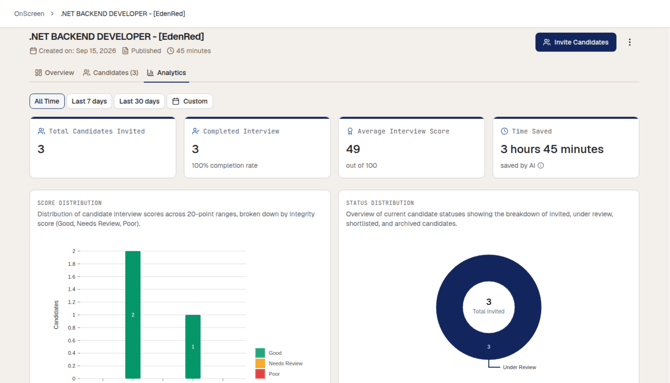
Summary metrics
The following metrics are displayed at the top of the tab:
- Total candidates invited: The number of candidates who were invited to interviews that are based on this template.
- Completed interview: The number of candidates who finished the interview, along with the completion rate. A low completion rate suggests that candidates are dropping off — for example, because the interview is too long or the invite is unclear.
- Average interview score: The average score out of 100 across all the candidates who completed the interview. Use this to check whether the interview is pitched at the right level for the role. A very high or very low average across many candidates suggests that the skills or the difficulty need adjusting.
- Time saved: An estimate of the recruiter time that OnScreen may have saved. It combines the coordination effort for everyone who was invited with the interview time for the candidates who completed the interview. Note: This figure is indicative and is not a record of hours that were actually tracked.
Score distribution
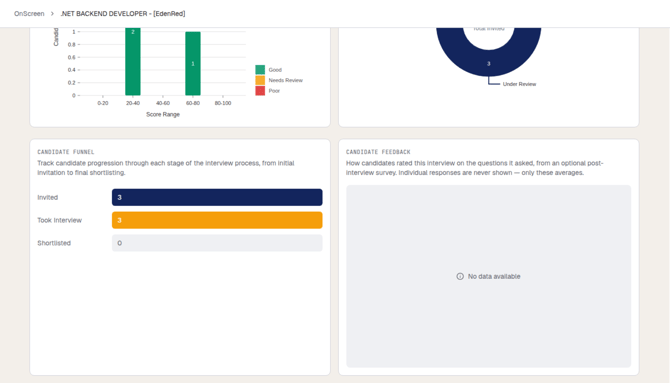
Shows how candidate scores are spread across 20-point ranges, broken down by integrity score (Good, Needs review, and Poor). Use this to see whether your candidate pool is clustered at one end of the scale, and to spot cases where high scores are paired with integrity concerns.
Status distribution
Shows the breakdown of your candidates by their current status: invited, under review, shortlisted, and archived. Use this to see how many candidates are waiting on your review.
Candidate funnel
Tracks candidate progression through each stage of the interview process, from Invited to Took interview to Shortlisted. Use this to find where candidates are dropping off - a large gap between invited and took interview points to a problem with the invite or the interview length, while a large gap between took interview and shortlisted suggests that the candidates you are sourcing are not matching the role.
Candidate feedback
Shows how candidates rated this interview on the questions it asked, based on an optional post-interview survey. Only the averages are displayed - individual responses are never shown. If no candidate has completed the survey, No data available is displayed.