
How to Deactivate or Delete an Admin
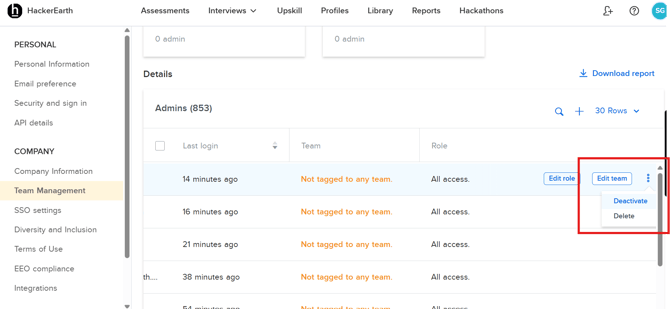
Any Super Admin can manage admin accounts from the Team Management section. To deactivate or delete an admin, click the three-dot menu on the right side of the user's row and select either Deactivate or Delete.
What Happens Next
Deactivating an admin The account remains in the system, but the admin loses all access to the platform. This is useful if you want to retain the account for future reference without granting active access.
Deleting an admin The platform will display all assessments the admin created or was assigned to as a Point of Contact (POC). Before deletion can be completed, their assessment access must be transferred to an active admin.
You can transfer access in one of two ways:
- Transfer it to yourself (as a Recruiter or Super Admin)
- Transfer it to another active admin by entering their email address and clicking Yes
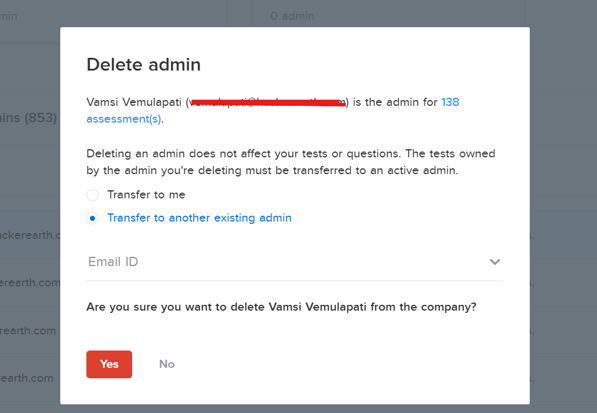
Once transferred, the selected admin will be updated as the owner and POC across all associated assessments.