The Profiles section gives you a single view of all your candidates across assessments and interviews. Instead of opening each assessment or interview separately to check who has taken it and how they performed, you can see every candidate activity in one place and narrow it down to what you need.
Use the Profiles section to:
- Track candidates who are currently taking an assessment or an interview
- Find every activity for a particular candidate, across all your assessments and interviews
- Review candidates who are pending review, shortlisted, or archived
- Compare candidates by score or by experience level
- Send reminders, cancel invites, shortlist candidates, and generate interview links without leaving the page
Opening the Profiles section
To open the Profiles section, follow these steps:
- Log in to your HackerEarth Recruit account by using your admin credentials.
- In the left panel, click Profiles.
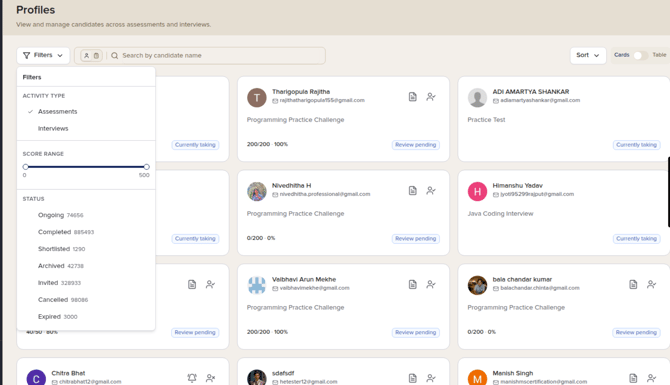
The candidate list is displayed. Each card shows the candidate's name and email ID, the name of the assessment or interview, the score where applicable, and the current status, such as Currently taking, Review pending, Invited, or Shortlisted. Hovering over a card reveals the actions that you can take for that candidate.
Use the Cards/Table toggle in the top-right corner to switch between the card view and the table view.
Searching for a candidate or an activity
The search bar supports two types of search. Use the icons at the left of the search bar to switch between them:
- Candidate: Search by candidate name or by candidate email ID. The placeholder text reads Search by candidate name.
- Assessment: Search by the name of an assessment or an interview. The placeholder text reads Search by assessment name.


Actions on a candidate card
Hover over a candidate card to see the actions available for that candidate. The actions that appear depend on the candidate's current status:
- Send reminder: Sends a reminder email to a candidate who has been invited but has not started the assessment or interview yet.
- Cancel invite: Cancels the invite that was sent to the candidate.
- View report: Opens the candidate's report for that assessment or interview.
- Shortlist: Shortlists the candidate. The status on the card changes to Shortlisted.
- Get interview link: Generates an interview link for a candidate, so that you can move a shortlisted candidate to the interview stage without leaving the Profiles section.
Filtering the candidate list
Click Filters to narrow the list. The following filters are available:
Activity type
Select whether to view candidates from Assessments or from Interviews.
Score range
Drag the slider handles to show only the candidates whose score falls within a particular range.
Status
Select one or more statuses to view only the candidates at that stage. The number beside each status shows how many candidates it contains.
- Ongoing: The candidate is currently taking the assessment or interview.
- Completed: The candidate has finished the assessment or interview.
- Shortlisted: The candidate has been shortlisted.
- Archived: The candidate has been archived.
- Invited: The candidate has been invited but has not started yet.
- Cancelled: The invite was cancelled.
- Expired: The invite expired before the candidate started.
The filters and the search term that you have applied are displayed as chips below the search bar. Click the cross on a chip to remove that filter, or click Clear all to remove all of them at once. The number of results is displayed below the list, for example, Showing 1-2 of 2.
Sorting the candidate list
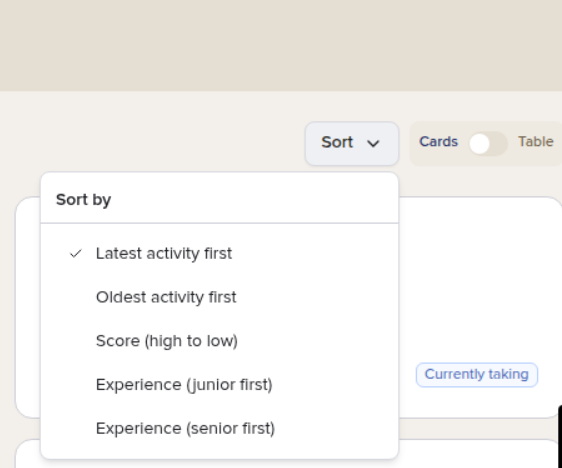
Click Sort to change the order in which candidates are displayed. You can sort by:
- Latest activity first (default)
- Oldest activity first
- Score (high to low)
- Experience (junior first)
- Experience (senior first)