![HE logo.png]](https://help.hackerearth.com/hs-fs/hubfs/HE%20logo.png?height=40&name=HE%20logo.png)
Before Downloading the Smart Browser
- Ensure you are using a WiFi connection and not a mobile hotspot.
- Mandatory prerequisites:
- What is the operating system on the computer you are using (MacOS, Linux, or Windows)?
- What is the version of your operating system?
- For Mac users only:
- What processor does your Mac computer have: the Intel processor or the Apple Silicon processor?
- For information on how to figure out what processor your Mac has, see this.
- Update webcam drivers.
- Ensure that your system is compatible. Here are the system compatibility details:
- Windows 10 and 11
- Linux Ubuntu 20.04 and Ubuntu 22.04
- Mac 13.5 Ventura and above
- You cannot download Smart Browser if you are:
- Working with a firewall enabled
- Using a VPN
- Close all applications, including those running in the background (for example, WhatsApp, Chrome), and desktop widgets such as Clock and Calendar, to be able to proceed with the assessment.
After Downloading the Smart Browser
- You cannot do the following while using Smart Browser:
- Share your screen
- Take screenshots of the test window
- Record the test window
- Keep any applications open (Chrome, WhatsApp - even if running in the background, etc.)
- Resize the test window
- Use multiple monitors
Key Combinations that are Absolutely Forbidden While Using Smart Browser
|
Operating System |
Forbidden Key Combinations |
|
All |
Alt + Tab, Ctrl + Alt + Delete, OS superkeys and combos involving these keys, print screen and any combination involving this key, Ctrl + Shift + Esc, Alt + Esc, Ctrl + Alt + Shift, etc. |
|
Mac |
Command + H, Command + Option + H, Shift + Command (⌘) + 3, Shift + Command (⌘) + 4, Shift + Command (⌘) + 5, Control + Arrow (Up/Down), Command + Tab, Command + M, Command + Option + Esc, Command + Space, Command + Option + D, Control + Up Arrow, Control + Down Arrow, Command + ` (Backtick), Control + Command + F, Command + Shift + Option + Esc, Command + Shift + G, Command + Shift + N |
|
Ubuntu |
Ctrl + Alt + Shift + R, Ctrl + Alt + Arrow Key, Ctrl + Alt + Tab, Alt + Backtick (`), Ctrl + Alt + T, Ctrl + Alt + L, Ctrl + Shift + N |
Frequently Asked Questions
- After downloading the Smart Browser, it shows "Unable to connect to HackerEarth server."
- This issue is typically caused by firewall restrictions or being connected to a VPN. Try using a different machine to resolve the issue.
- I am not able to start the test with the Smart Browser, and it shows a blank screen (Untitled page).
- Please ensure that you have downloaded and installed the Smart Browser according to your OS, and then click on Start Test.
- It’s showing "Following application must be closed to start the test," but Chrome is open.
- To resolve this, close all applications running in the background (for example, WhatsApp, Chrome, desktop widgets such as Clock, Calendar) and click on Retry Check.
- I got logged out of the Smart Browser, and the test window is still active. What do I do?
- Click on the Test Invite link that you received to your registered email ID. You should be able to resume the test now.
- Click on the Test Invite link that you received to your registered email ID. You should be able to resume the test now.
- I see “Webcam is disabled.” How do I fix this?
- If you see this at the beginning of your test, please enable the webcam from the system settings, and ensure that no other application is using the webcam.
- I see “Webcam is frozen.” How do I fix this?
- Update your webcam drivers before starting the test. If this happens during the test, it could also be an Internet connection issue.
Windows-specific FAQs
- I am installing Smart Browser but I get a Windows Defender error.
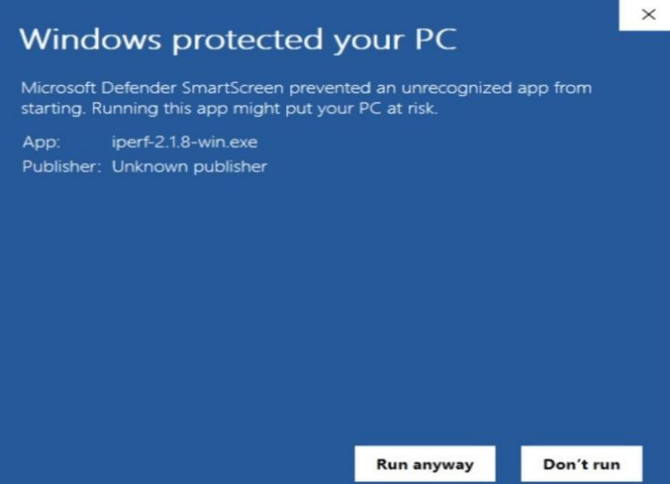
- In this case, click Run anyway. If you don’t see the button, please increase the window size of the application.
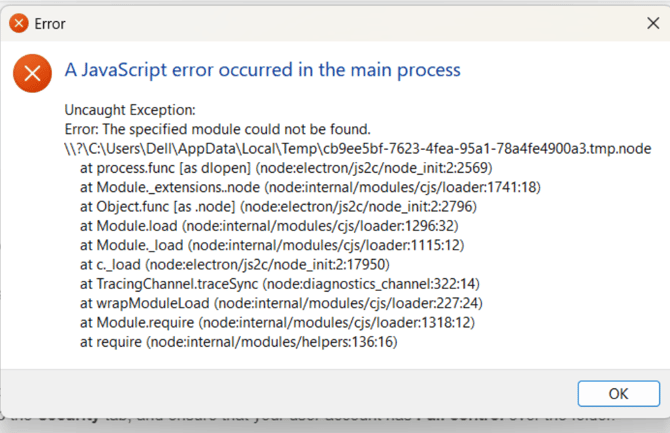
- If you are facing an installation error related to C++ libraries (like JavaScript error), install the updated C++ libraries as mentioned here, and also ensure you have the latest version of Smart Browser.
- If the ‘Accept and Continue’ button is greyed out, it’s mostly due to missing webcam and microphone permissions in the Privacy & Security section.
Mac OS-specific FAQs
- While using the Smart Browser on Mac, the Smart Browser detects the camera and microphone permission prompt as an attempt to move away from the test and automatically closes the assessment window.
- You can relaunch the Smart Browser from the Start Test link.
- You can avoid this by granting permissions before starting the Smart Browser.
- To enable microphone permission: System Settings → Privacy & Security → Microphone → SmartBrowser → Enable.
- I have closed all open applications, but it still shows "Following application should be closed" on Mac OS.
- Make sure that Screen Recording and Accessibility permissions are enabled in System Settings.
- including those running in the background (for example, WhatsApp, Chrome), and desktop widgets such as Clock and Calendar, to be able to proceed with the assessment.
- How to identify whether your Mac is Intel-based or Apple Silicon:
- Click the Apple Menu > About This Mac and check for Processor or Chip.
Linux-specific FAQs
- Which commands should I use to install Smart Browser on a Linux machine?
- Command: sudo dpkg -i [package path]
- Example: sudo dpkg -i ~/Downloads/SmartBrowser-amd64-1.0.6.deb