
After you create an interview template in OnScreen, you can invite candidates to an interview that is based on it. You can invite candidates in three ways:
- Resumes: Upload candidate resumes and let the system extract the contact information
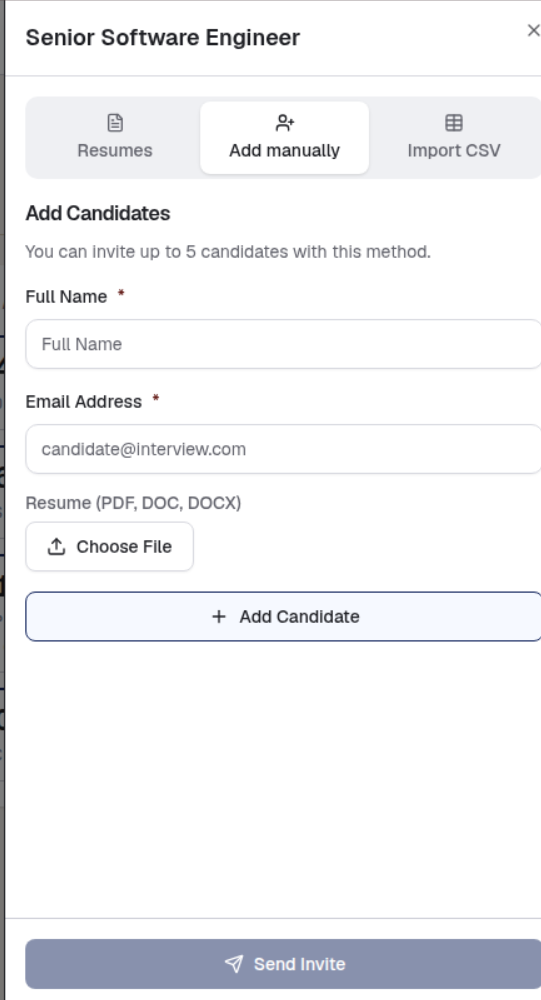
- Add manually: Enter each candidate's details yourself
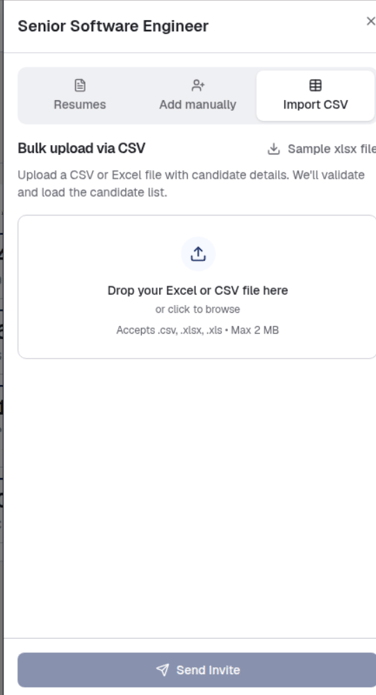
- Import CSV: Upload a CSV or Excel file with your candidate list
To open the invite pane, open the template and click Invite Candidates in the top-right corner. Select the tab for the method that you want to use.
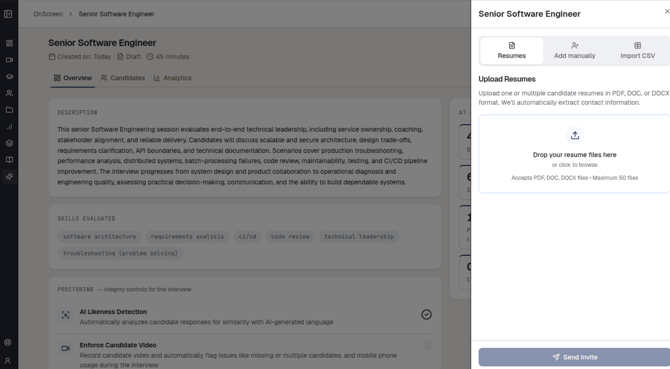
Inviting candidates by uploading resumes
Use this method when you already have candidate resumes and do not want to enter their details by hand. The contact information is extracted from the resumes automatically.
To invite candidates by uploading resumes, follow these steps:
- In the invite pane, click the Resumes tab.
- Drag your resume files into the upload area, or click the area to browse for them.
- Format: PDF, DOC, or DOCX
- You can upload up to 50 files at a time
- Review the candidate list that is loaded from the resumes.
- Click Send Invite.
Inviting candidates manually
Use this method for a small number of candidates whose details you want to enter yourself.
Note: You can invite up to 5 candidates by using this method.
To invite candidates manually, follow these steps:
- In the invite pane, click the Add manually tab.
- In the Full name field, enter the candidate's name. This field is mandatory.
- In the Email address field, enter the candidate's email address. This field is mandatory.
- Optionally, click Choose file to upload the candidate's resume in PDF, DOC, or DOCX format.
- Click Add candidate.
- Repeat these steps for each candidate that you want to invite.
- Click Send Invite.
Inviting candidates in bulk by using a CSV file
Use this method when you want to invite a large number of candidates at once.
To invite candidates in bulk, follow these steps:
- In the invite pane, click the Import CSV tab.
- Click Sample xlsx file to download the sample file.
- Fill out the sheet with your candidates' details.
- Drag the file into the upload area, or click the area to browse for it.
- Format: .csv, .xlsx, or .xls
- Size: Maximum 2 MB
- The file is validated and the candidate list is loaded. Review the candidates that are displayed, along with the total count.
- To upload a different file, click Change file.
- To remove all the loaded candidates, click Clear all.
- Click Send n Invites, where n is the number of candidates in your list.
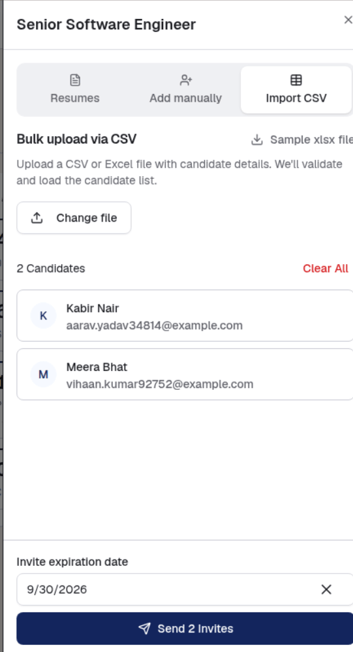
Setting an invite expiration date
Optionally, set an Invite expiration date at the bottom of the invite pane. Candidates cannot start the interview after this date. To remove a date that you have set, click the cross beside it.